
Polymet AI: The Design Tool That Finally Gets What Developers Actually Need
Last week, I spent four hours wrestling with a design problem that should have taken twenty minutes.
I had a working app. The backend was solid. The logic was clean. But every time I looked at the UI, something felt... off. The spacing was inconsistent. The buttons didn't quite match. The whole thing looked like it was designed by someone who learned CSS from Stack Overflow answers—which, to be fair, describes most of us.
Here's the uncomfortable truth nobody talks about in 2025: coding isn't the bottleneck anymore. AI tools like Claude Code, Cursor, and Copilot have made writing functional code faster than ever. The real bottleneck? Design. Specifically, making your app look like it was built by professionals and not assembled from random UI components found in the wild.
That's when I discovered Polymet AI, and it fundamentally changed how I think about the design-to-code workflow.
The Design Problem Nobody's Solving (Until Now)
You've probably tried the usual suspects. v0.dev generates nice-looking components, but they're one-offs—isolated islands of design that don't play well together. Bolt and Replit's design modes are great for prototypes, but the code they produce often needs heavy refactoring before it's production-ready. And Figma? Brilliant for designers, but there's still that painful handoff gap where pixel-perfect mockups turn into "close enough" implementations.
The common thread? These tools treat design and code as separate concerns, forcing you to bridge the gap manually. That bridge is where projects die, timelines slip, and developers start questioning their career choices.
Polymet takes a different approach entirely. It's a hybrid tool that combines the granular control you'd expect from a professional design tool with AI-powered automation that actually understands how modern frontend code works. The Y Combinator-backed team (S24 batch) built it specifically for product teams who need to ship polished UIs without hiring a full design team or spending weeks on pixel-pushing.
Why Design Systems Are the Foundation (Not an Afterthought)
Here's something that took me embarrassingly long to learn: jumping straight into screen design is like writing code without understanding the architecture. You'll create something, sure. But it'll be a mess that fights you at every turn.
Polymet forces you to think about design systems first. And I mean that in the best possible way.
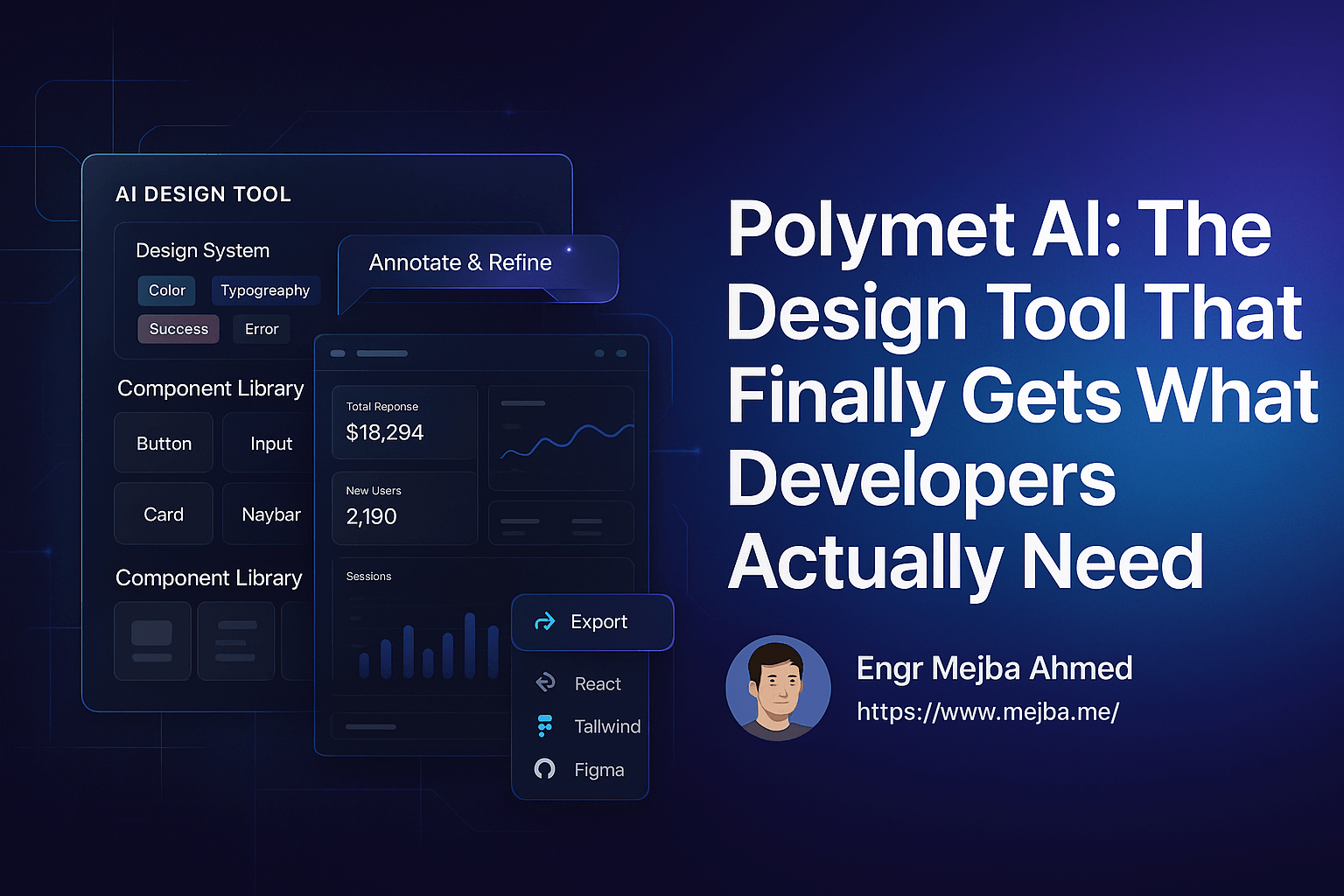
When you start a new project, you're not dropped into a blank canvas and expected to figure it out. Instead, you create a design system using natural language prompts. Tell it you want a modern SaaS look with purple accents and clean typography, and it generates:
- Button styles across all states (primary, secondary, hover, disabled, loading)
- Typography scale with consistent heading and body text sizes
- Color palette with semantic tokens (primary, secondary, success, error, warning)
- Input fields with validation states and helper text styles
- Layout components like sidebars, cards, and navigation patterns
- Accessibility features baked into every component
This isn't just cosmetic. These design tokens get embedded into everything you build afterward. Every screen, every component, every micro-interaction inherits from this foundation. The result? Consistency without constant vigilance.
I've watched too many projects lose their visual coherence over time because every new feature introduced slight variations. Polymet's approach makes that almost impossible. Your buttons will always look like your buttons, whether you're building them today or six months from now.
The Workflow That Actually Works
After years of trying different design-to-code approaches, I've landed on a workflow with Polymet that feels genuinely efficient. Here's the process, warts and all.
Step 1: Define Your Design System
Spend the first 15-20 minutes on your design system. Not more. The temptation is to obsess over every detail, but you can refine later. What matters is establishing the core visual language.
My typical prompt looks something like:
"Create a design system for a B2B analytics dashboard. Professional, clean, data-focused. Primary color is deep blue (#1e40af), accents in emerald green for positive metrics. Use Inter for body text, something slightly bolder for headings. Emphasize whitespace and clear information hierarchy."
Polymet generates the system, and I spend a few minutes adjusting anything that feels off. Usually it's minor—maybe the border radius is too sharp, or I want the secondary button to have more contrast. The visual editor lets you tweak individual properties without losing the AI-generated foundation.
Step 2: Build Screens Incrementally
This is where most people go wrong with AI design tools. They try to describe their entire app in one massive prompt and wonder why the output looks like a fever dream.
Instead, build one screen at a time with focused prompts:
"Create the main dashboard screen. Show a sidebar navigation on the left, header with user profile and notifications at top. Main content area should have four metric cards at top (revenue, users, conversion rate, churn) followed by two charts side by side (line chart for revenue trends, bar chart for user acquisition). Include a recent activity feed in the bottom third."
Each screen inherits your design system automatically. The sidebar uses your defined colors. The metric cards follow your typography scale. The charts respect your spacing conventions. You're building with LEGO bricks you designed yourself, not random pieces from different sets.
Step 3: Add Interactivity and States
Static mockups are useless for communicating how an app should actually behave. Polymet lets you add interactive elements that actually work:
- Toggle animations for favorites, bookmarks, or settings
- Dropdown menus with proper keyboard navigation
- Copy-to-clipboard buttons with feedback states
- Slide-out panels for detail views and settings
- Loading states and skeleton screens
- Empty states when data doesn't exist
- Error states with actionable messaging
You can demonstrate these directly in the browser. No fake prototyping tools, no "imagine this slides in from the right." It actually slides in from the right, and stakeholders can see exactly what you mean.
Step 4: Annotate and Refine
Here's where the magic happens. Select any element—a button, a card, a section of the layout—and annotate it with specific requests:
"Make this hover state more subtle, reduce the shadow. The contrast between background and text needs work on mobile. Add 8px more padding on the sides."
Polymet processes these requests and updates the design in place. It's like having a junior designer who never gets tired and doesn't take your feedback personally.
I've found this annotation workflow faster than traditional design tools for iteration. In Figma, I'd need to locate the component, update the variant, maybe check the responsive versions, export, hand off. Here, it's describe → generate → done.
Step 5: Export to Production Code
This is where I was most skeptical. AI-generated code usually needs significant cleanup before it's production-ready. Polymet surprised me.
The export gives you a full React project with Tailwind CSS configuration already set up. Not just the components—the entire Tailwind config reflects your design system. Your custom colors are there. Your spacing scale matches what you designed. The typography tokens translate correctly.
You can:
- Run
npm installandnpm run devimmediately - See your design exactly as you built it
- Hook up backend logic without restructuring
- Deploy to Vercel, Netlify, or wherever you host
The code isn't perfect. You'll want to optimize bundle sizes, add proper error boundaries, maybe restructure some components for your specific needs. But it's 80% of the way there, which is dramatically better than starting from scratch or reverse-engineering designs from screenshots.
Pricing Reality Check
Transparency matters, so let's talk money.
Free Plan: 250 credits gets you a few design generations. Enough to evaluate whether the tool works for your brain, not enough for a real project.
$50/month Plan: More credits, includes React/Tailwind export. This is where most individual developers and small teams should start. You can build several complete projects per month at this tier.
$500/month Plan: Unlimited credits, full wireframe and prototype capabilities, enterprise features. This makes sense for agencies or teams building multiple products simultaneously.
The $50 tier is surprisingly competitive. Compare it to:
- Figma Professional: $15/user/month, but you still need someone to write the code
- Design agency hourly rates: $100-300/hour
- Your own time fumbling with CSS: priceless (and not in a good way)
If Polymet saves you 10-15 hours per month on design work—and in my experience it does—the ROI math works quickly.
What Polymet Gets Right (That Others Miss)
Design System Integration Actually Works
Most AI design tools treat every generation as independent. Polymet maintains context across your entire project. This sounds obvious until you've experienced the alternative—getting three different button styles in one session because the tool forgot what you'd already established.
Component-Based Architecture
The generated code uses real React components, not monolithic JSX blobs. You can extract pieces, modify them independently, and build a proper component library. This matters enormously for maintenance.
Figma Interoperability
You can import from Figma and export back to it. If your team has existing design assets, you don't lose them. If stakeholders insist on seeing designs in Figma, you can still accommodate them. This flexibility removes a lot of organizational friction.
GitHub Integration
Push your designs directly to version control. Track changes. Review with your team. This is how design should work in engineering-driven organizations.
Where Polymet Falls Short (Honest Assessment)
No tool is perfect, and you should know the limitations before committing.
Learning curve for prompts: Getting consistently good results requires learning how to describe things effectively. Your first few attempts will be frustrating. The tool is powerful, but it's not mind-reading.
Complex animations: Basic interactions are solid. Complex, choreographed animations across multiple elements? You'll probably need custom code. Polymet handles the 90% case well; the remaining 10% requires traditional approaches.
Brand-specific nuance: If your company has extremely precise brand guidelines—specific curve radii for every corner, exact shadow specifications, custom icon sets—you'll spend time training the design system to match. Generic "modern SaaS" looks great immediately. Pixel-perfect brand adherence takes work.
Not for established design teams: If you have a full design team already working in Figma with established workflows, Polymet might create friction rather than eliminate it. This tool shines brightest for developers who need to design, not designers who need to develop.
The Bigger Picture: Design as the New Bottleneck
A year ago, I would have laughed at the idea that design would become my biggest time sink. I'm a developer. I write code. Design was always something I "figured out" along the way.
But AI coding tools have shifted the economics dramatically. What used to take days of implementation now takes hours. What used to require deep expertise now requires clear prompts and good judgment. The code part got faster.
Design didn't keep up. You still need to understand visual hierarchy, color theory, typography, spacing systems, responsive behavior, accessibility requirements. AI can generate code from descriptions, but generating good design from descriptions requires tools that understand design principles, not just syntax.
Polymet is an early entrant in what I think becomes a massive category: design tools built for the AI coding era. Tools that assume you can implement anything, and focus on helping you decide what's worth implementing.
Practical Tips From Someone Who's Used This Extensively
Start smaller than you think: Your first project should be a simple landing page or a single-feature prototype. Don't try to build your entire SaaS in week one.
Be specific in your prompts, but not prescriptive: "Dashboard with sidebar navigation" gives the AI room to make good design decisions. "Dashboard with a 240px sidebar in #f8f9fa with 16px border-radius on the top-right corner" constrains it too much too early.
Generate multiple options: Don't accept the first result. Generate three or four variations of each screen, then pick the best elements from each. This is faster than trying to describe perfection upfront.
Use the annotation system liberally: Small refinements through annotation are faster than regenerating entire screens. "Make this feel more spacious" is a valid instruction.
Export early, export often: Don't wait until everything is perfect to see the code. Export after each major milestone. You'll catch translation issues early when they're easy to fix.
Combine with your other AI tools: Polymet handles design-to-frontend beautifully. Use Claude Code or Cursor for backend logic, API integrations, and complex state management. The combination is genuinely powerful.
Who Should Use Polymet (And Who Shouldn't)
Great fit for:
- Solo developers who need professional-looking UIs
- Startups without dedicated design resources
- Agencies building multiple client projects
- Developers validating ideas quickly
- Teams bridging design and development
Probably not for:
- Large organizations with established design systems in Figma
- Projects requiring extremely custom illustration or animation
- Teams where designers already outnumber developers
- Simple CRUD apps where aesthetics don't matter
The Path Forward
The gap between "working software" and "software people want to use" has always been design. For years, we accepted that gap as inevitable—the cost of being developers rather than designers.
Tools like Polymet are closing that gap. Not by making design trivial, but by making it accessible. By encoding design expertise into systems that developers can actually use without spending years learning visual principles.
I'm not saying everyone should stop learning design fundamentals. Understanding why things look good will always make you better at directing AI tools. But you no longer need to master Figma, learn color theory from scratch, or hire an expensive contractor just to ship something that looks professional.
The first step? Try the free tier on a small project. Build a design system. Generate a few screens. Export the code and see how it feels. You'll know within an hour whether Polymet fits your brain.
The design bottleneck is real. The tools to solve it are finally here.
🤝 Hire / Work with me:
- 🔗 Fiverr (custom builds, integrations, performance): fiverr.com/s/EgxYmWD
- 🌐 Mejba Personal Portfolio: mejba.me
- 🏢 Ramlit Limited: ramlit.com
- 🎨 ColorPark Creative Agency: colorpark.io
- 🛡 xCyberSecurity Global Services: xcybersecurity.io