
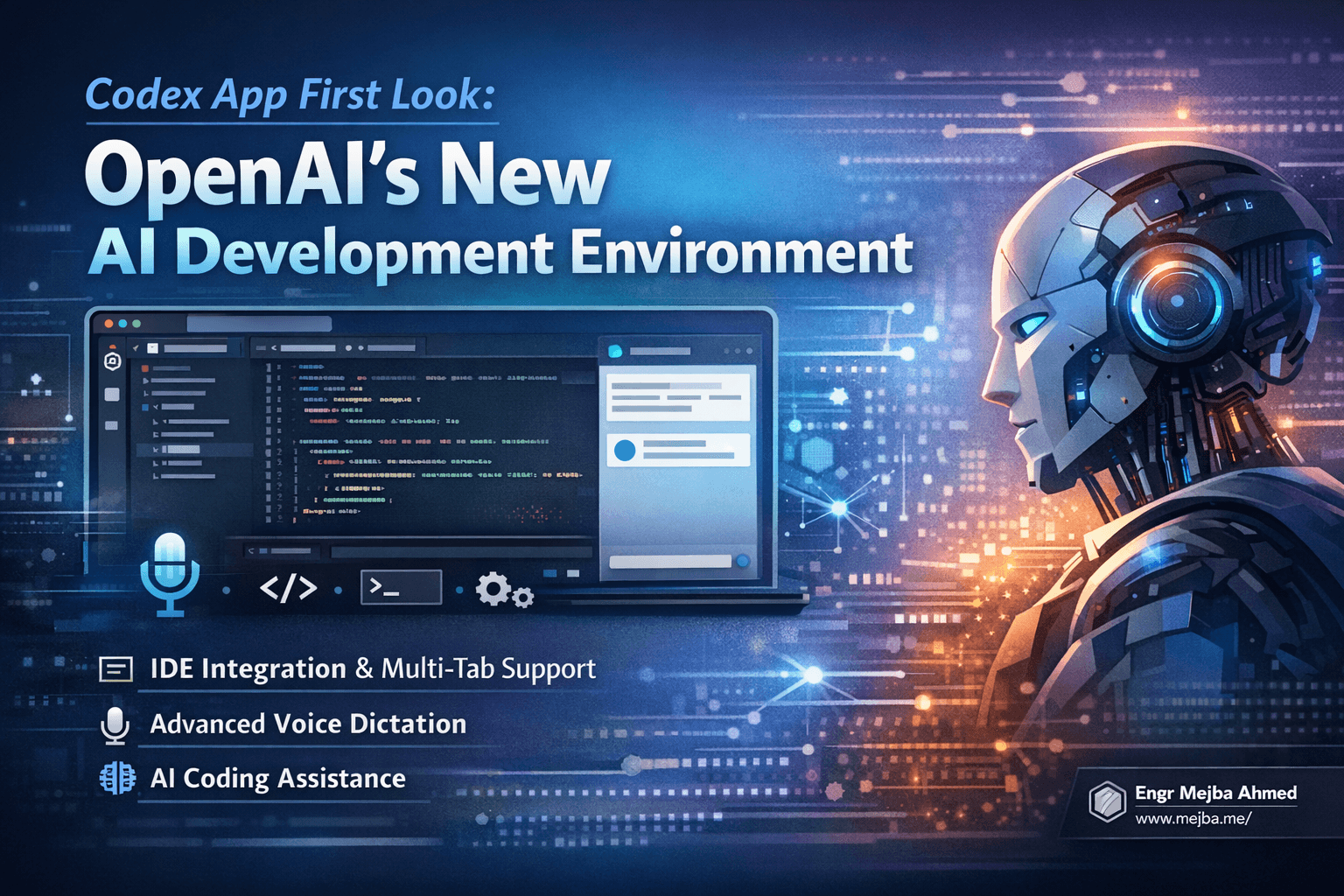
Codex App First Look: OpenAI's New AI Development Environment
I've spent the last week putting OpenAI's Codex app through its paces, and I need to share what I found. This isn't just another AI chat interface bolted onto a terminal—it's a genuine attempt to rethink how developers interact with AI during the coding process. The app wraps around the Codex CLI and adds features that actually address real friction points in my daily workflow.
What caught my attention initially was the multi-tab support and IDE integration. I've been using tools like Ghosty and various terminal multiplexers for years, but having that functionality baked into an AI-focused development environment changes the dynamic. You're not context-switching between your AI assistant and your code—they exist in the same mental space.
Let me walk you through everything I discovered, the features that impressed me, and the rough edges that still need polish. If you're considering adding Codex to your development stack, this breakdown should help you decide whether it fits your workflow.
The Problem With Current AI Coding Tools
Most AI coding assistants right now feel like they exist in a parallel universe from your actual development environment. You write code in your IDE, copy it over to ChatGPT or Claude, get suggestions, then manually transfer those back. The context constantly gets lost. Your AI doesn't know what files changed, what errors you just encountered, or what your project structure looks like unless you manually provide all that information.
I've burned countless hours on this copy-paste dance. Even with tools that integrate directly into editors, there's usually a disconnect between the AI's understanding and your actual project state. The AI might suggest a function that already exists in your codebase, or miss obvious patterns because it can't see your file tree.
The voice input situation is worse. Developers who prefer dictation—whether for accessibility reasons, speed, or just to rest their hands—are stuck using system-level dictation that wasn't designed for code. Technical terms get mangled. Variable names become word salad. The whole experience makes you want to give up and just type everything.
Codex attempts to solve these problems by positioning itself as a unified interface between you, your IDE, and the AI. The question is whether it actually delivers.
How Codex Approaches the Integration Challenge
Codex functions as a front-end wrapper for the Codex CLI, but calling it just a wrapper undersells what it brings to the table. The architecture centers on keeping your development context intact while giving you access to powerful AI reasoning capabilities.
The tabbed interface immediately felt natural. I can have one tab connected to my main project, another running tests in the background, and a third exploring a library I'm trying to integrate. Each tab maintains its own context with the AI, so conversations don't bleed into each other.
The app connects to external IDEs like Xcode rather than trying to replace them. This is a smart design choice. When I ask Codex to open my project, it launches Xcode and maintains a connection that lets me see file diffs, search code, and trigger builds without leaving the Codex interface. I'm not forced to abandon my muscle memory or learn a completely new editor.
The integration runs deep enough that I can view changes Codex suggests alongside my actual project files. No more mentally mapping between what the AI shows me and what exists in my codebase. The file explorer and diff viewer pull directly from the connected IDE.
What makes this work is the run configuration system. Codex reads your project's makefile and lets you execute build commands, run tests, or launch your application directly. During my testing, I built and ran a Mac app entirely from within Codex, watching the output stream into the console while the AI remained available for questions about the build process.
The Dictation Feature Changes Everything
Here's where Codex genuinely surprised me. The dictation function—accessible via a button or the Ctrl+M shortcut—isn't just system-level voice recognition piped through. It's designed specifically for developer communication.
When I dictate, the system handles technical terminology significantly better than macOS or Windows built-in dictation. Framework names, function signatures, and even command-line flags come through more accurately. Not perfectly—this isn't magic—but the improvement is noticeable enough that I actually started using voice input regularly.
The implementation supports two modes. You can have dictated text appear inline at your cursor position, or append it to the bottom of your current message. This flexibility matters when you're mid-thought and want to add a spoken note without disrupting what you've already typed.
Font size adjustment via Command + and Command - applies to both the console output and the dictation areas. Small quality-of-life detail, but it makes a difference when you're staring at code for hours.
The messages go to the AI the same way ChatGPT handles input, but you're interacting with Codex GPT 5.2 in what they call "high reasoning" mode. The model selection interface lets you choose between different models, but the Codex High variant has become my default for complex architectural questions and debugging sessions.
First-Time User Experience: The Good and The Work-in-Progress
Codex clearly invested effort into onboarding, which is refreshing for a developer tool. Most CLI wrappers assume you'll read documentation and figure things out. Codex provides starter markdown templates and UI guidance that actually help new users get oriented.
I tested the presenter app integration—basically a slideshow tool built to demonstrate Codex capabilities—and found it helpful for understanding the workflow. The first-time user experience (FTUE) improvements include removing unnecessary UI elements from preview screens so you're not overwhelmed with options before you understand the basics.
The window centering behavior shows both the thoughtfulness and the rough edges. Codex now centers the application window on your primary display after onboarding completes. Great idea. But currently, the centering happens after the window renders, which causes a visible jump as the window repositions itself. It's a minor visual glitch, but it makes the app feel less polished than it should.
The reset button for the FTUE lets you restart the onboarding flow, which I used several times while testing different configurations. Being able to replay the first-run experience without reinstalling is useful when you're trying to evaluate how the app presents itself to new users.
Working With Multiple Models and Reasoning Modes
Codex provides access to several AI models through a unified interface. You select your preferred model from a dropdown, and your conversations route through that model for the duration of your session. Switching models mid-conversation is possible but creates a context break—the new model doesn't inherit the full context from your previous exchanges.
The Codex GPT 5.2 with "high reasoning" mode became my go-to for anything beyond simple questions. When I needed to refactor a complex data transformation pipeline, the reasoning mode provided step-by-step explanations that matched what I was seeing in my actual code. The AI understood the architectural constraints I was working within.
For quick lookups and simple syntax questions, lower reasoning modes suffice and respond faster. The latency difference is noticeable—high reasoning mode takes longer to generate responses, as you'd expect from more thorough processing.
The model selector remembers your preference across sessions. I appreciated not having to re-select my preferred model every time I launched the app.
IDE Integration in Practice
Opening an Xcode project from within Codex works smoothly once you've configured the connection. I pointed Codex at a SwiftUI project and watched it index the file structure. From that point, I could search for files, view recent changes, and even hide UI elements like the SwiftUI canvas preview when I needed more screen real estate.
The file change view deserves specific mention. When Codex suggests modifications, I can see a diff between the current file state and the proposed changes. This isn't just showing me code in a chat bubble—it's displaying the actual delta against my working files.
Build integration through makefiles makes the run configuration straightforward. I created a makefile target for my Mac app build, added a run command that launches the compiled binary, and Codex picked it up automatically. Running make run from within Codex builds the app and launches it with output streaming to the console.
The debugging story is decent but not exceptional. I can see build output and errors, search for relevant code, and ask the AI about failure messages. But there's no step-through debugger integration—when I need breakpoints and inspection, I'm still going back to Xcode proper.
Live Transcription: Promising But Unstable
Codex includes a live transcription feature built on the Whisper SDK, and it shows the most potential alongside the most frustration. The idea is that you can speak continuously while coding, and Codex transcribes your thoughts in real-time.
When it works, it's genuinely useful. I dictated architectural notes while looking at code, described bugs I was observing, and narrated my debugging process. The custom dictionary support for technical terms helps—you can add framework names, API endpoints, and project-specific vocabulary that Whisper would otherwise mangle.
The instability is real, though. During my testing, the transcription failed multiple times with no clear pattern. Sometimes it would simply stop transcribing. Other times it would produce garbled output that bore no resemblance to what I said. Retrying usually helped, but having to retry at all disrupts the workflow.
I treated live transcription as a bonus feature rather than something I could rely on. For critical notes, I stuck with the standard dictation function which proved more consistent.
Performance and System Resources
Running Codex alongside Xcode, a web browser with documentation tabs, and a local development server didn't bring my machine to its knees. Memory usage stayed reasonable—higher than a simple terminal, obviously, but comparable to running VS Code.
The AI responses come from OpenAI's servers, so your local hardware isn't doing the inference. What you are running locally is the UI, the IDE integration layer, and the audio processing for dictation. None of these proved particularly demanding.
Network latency affects response times more than anything local. High reasoning mode responses took anywhere from a few seconds to around fifteen seconds depending on complexity and presumably server load. Standard mode responses came back in one to three seconds typically.
The app never crashed during my testing week. I experienced the UI bugs I've mentioned—cursor autohide not working consistently, slide navigation quirks in the presenter—but no full crashes or data loss.
What Still Needs Work
The window centering timing issue bothers me every time I see it. The window should calculate its position before rendering, not after. This is the kind of polish detail that separates good software from great software.
Cursor autohide in certain contexts doesn't work as documented. The cursor should disappear after a few seconds of keyboard activity but sometimes remains visible. Minor, but noticeable.
The slide panel navigation in the presenter app has bugs. Moving between slides sometimes fails to register the first click, requiring a second interaction. Given that the presenter app serves as a demonstration tool, these bugs undermine the impression Codex is trying to create.
One build warning appeared during my testing about a missing file that didn't actually block compilation. I never identified the root cause, and the warning kept appearing. Not a major issue, but the kind of loose end that makes you wonder what else might be slightly off.
The live transcription reliability needs substantial improvement before I'd recommend depending on it. The feature has clear value when working, but current stability isn't there.
Comparing to Claude Code and Similar Tools
I've been using Claude Code extensively, so the comparison is natural. Both tools aim to integrate AI into the development workflow, but they approach the problem differently.
Claude Code operates as a CLI with deep terminal integration. It's exceptionally good at reading your codebase, making targeted edits, and running commands. The agent model means Claude can take multi-step actions—read a file, identify the problem, make edits, run tests, and iterate.
Codex positions itself as more of a development environment than a CLI tool. The tabbed interface, IDE connections, and voice input features go beyond what Claude Code currently offers. But Codex also feels more bounded—it's a specific app with specific capabilities rather than a flexible agent.
For me, the tools complement each other. I use Claude Code for serious code generation and debugging work where I need the AI to take autonomous action. I use Codex when I want a more conversational interface with voice input and direct IDE visibility. Different tools for different moments in the development cycle.
The model quality question depends on your specific needs. Codex GPT 5.2 with high reasoning produces excellent results for most tasks. Claude performs particularly well on complex reasoning chains and understanding large codebases. Neither is universally superior.
Setting Up Your Own Workflow
If you decide to try Codex, you can download it directly from chatgpt.com/codex. Here's how I'd recommend getting started once you have it installed. First, install the Codex CLI and verify it works independently. The app builds on the CLI, so you want that foundation solid.
Connect your IDE before diving into AI features. Point Codex at a real project you're actively working on. The value of the integration doesn't become apparent until you're looking at your actual code.
Set up at least one makefile run target. Even if it's just make run executing echo "hello world", having that feedback loop established helps you understand how Codex handles build processes.
Spend time with the dictation feature. Use Ctrl+M extensively. Get comfortable speaking your thoughts while coding. This is where Codex's unique value shows up most clearly.
Don't depend on live transcription for anything critical yet. Experiment with it, but have backup plans.
Configure your preferred model and reasoning level. Start with high reasoning for complex work, drop to standard for quick questions. Find your own balance between response quality and latency.
Who Should Use Codex
Codex fits developers who want a unified interface for AI interaction, IDE work, and system commands. If you're frustrated by context-switching between multiple tools, this consolidation has real value.
Developers who prefer or need voice input should definitely try Codex. The dictation implementation is the best I've used for technical content. Even with its limitations, it's meaningfully better than system-level alternatives.
Mac developers working in Xcode will find the integration particularly smooth. The connection between Codex and Xcode feels like a first-class feature rather than an afterthought.
If you need maximum AI autonomy—the ability to hand off tasks and have the AI execute multiple steps independently—Claude Code or similar agent-focused tools remain stronger choices. Codex excels at the human-AI conversation; it's less optimized for the AI-takes-the-wheel workflow.
The Verdict After One Week
Codex represents a genuine step forward in developer-focused AI interfaces. The tabbed architecture, IDE integration, and voice input combine into something that addresses real workflow pain points. I found myself reaching for it more often as the week progressed.
The rough edges are real but not fatal. Window positioning quirks, transcription instability, and minor UI bugs all need attention. This feels like version 1.x software—functional and valuable, but still being refined.
What impresses me most is the thoughtfulness of the feature set. These aren't arbitrary additions. Tabs exist because developers multitask. Voice input exists because sometimes you need to keep your hands on the keyboard. IDE integration exists because the AI needs context about your actual code. Every major feature solves an identifiable problem.
I'm adding Codex to my regular toolkit. It won't replace Claude Code for deep coding work, but it's earned a place in my workflow for conversational AI interaction with voice input and IDE visibility. If those needs match yours, give it a try.
Let's Work Together
Looking to build AI systems, automate workflows, or scale your tech infrastructure? I'd love to help.
- Fiverr (custom builds & integrations): fiverr.com/s/EgxYmWD
- Portfolio: mejba.me
- Ramlit Limited (enterprise solutions): ramlit.com
- ColorPark (design & branding): colorpark.io
- xCyberSecurity (security services): xcybersecurity.io