
Have you ever wanted to build a complete website without typing a single line of code? In this tutorial, I'll show you how to enable voice dictation in Claude Desktop on Mac and develop applications completely hands-free!
The Problem: Claude's Voice Popup Issue
When you use Claude Desktop's built-in voice shortcut (Caps Lock), you might notice something frustrating — the transcribed text appears in a floating popup window instead of going directly into the chat input field.
This happens because Claude's voice shortcut is designed for "Quick Entry" — meant for when you're working in other apps and want to quickly ask Claude something without switching windows. But when you're already inside Claude, this creates an unnecessary extra step.
The Solution: Use macOS Native Dictation
Instead of using Claude's built-in voice shortcut, we can use macOS native dictation to input text directly into any text field — including Claude's chat input.
Step 1: Enable macOS Dictation
- Click the Apple menu () → System Settings
- Navigate to Keyboard → Dictation
- Turn Dictation ON
- Set Shortcut to "Press 🌐 (Globe) Key Twice"
- Enable Auto-punctuation for automatic commas and periods
- Select your preferred Microphone source
Step 2: Configure Claude Desktop Settings
- Open Claude Desktop
- Go to Settings → General
- Set Voice shortcut to "No shortcut" (disable it)
- Optionally disable Quick access shortcut if you don't need it
Step 3: Test Voice Input in Claude
- Open Claude Desktop
- Click inside the chat input field
- Press the 🌐 (Globe/Fn) key twice quickly
- You'll see a small microphone icon appear
- Speak your message clearly
- Press 🌐 again or click Done to stop
- Your text appears directly in the input field
- Press Enter to send!
Why This Method is Better
| Feature | Claude Voice Shortcut | macOS Dictation |
|---|---|---|
| Text Location | Floating popup | Direct in input field |
| Extra Steps | Click arrow to send | Just press Enter |
| Works Everywhere | Only Claude | Any app on Mac |
| Customization | Limited | Full macOS control |
Demo: Building a Restaurant Website with Voice
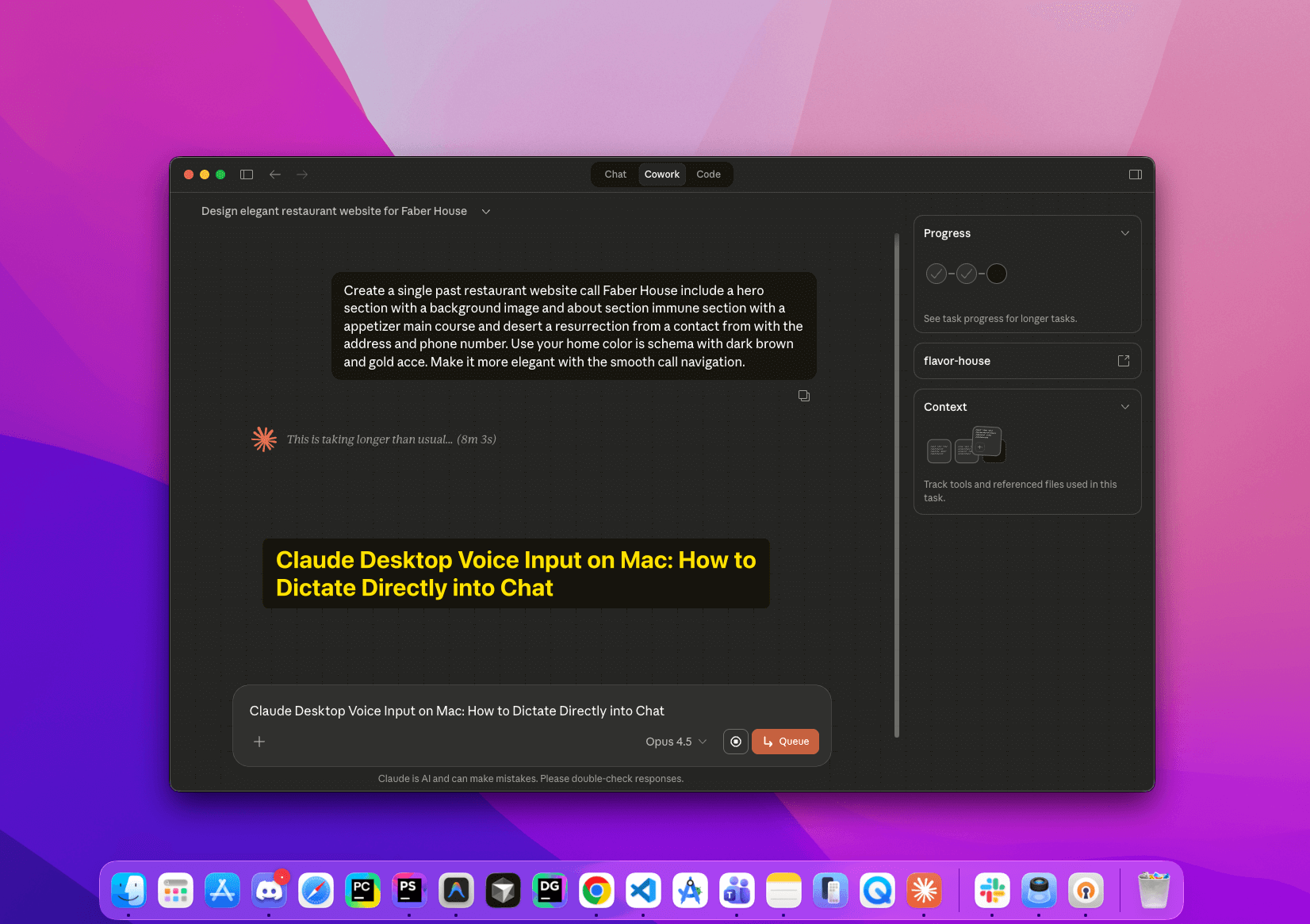
To demonstrate the power of voice-driven development, I built a complete restaurant website called Flavor House using only voice commands. The single page application includes:
- Hero section with call-to-action button
- About section describing the restaurant
- Menu showcase with appetizers, main courses, and desserts
- Reservation form with date and time picker
- Contact section with address and opening hours
- Fully responsive design
All of this was created by simply speaking instructions to Claude!
Video Tutorial
Watch the full tutorial where I demonstrate the entire process:
Voice Script Example
Here's an example of what you can dictate to Claude to build a restaurant website:
"Create a single page restaurant website called Flavor House. Include a hero section with a background image, an about section, a menu section with appetizers, main courses and desserts, a reservation form, and a contact section with address and phone number. Use a warm color scheme with dark brown and gold accents. Make it modern and elegant with smooth scroll navigation."
Tips for Better Voice Coding
- Speak clearly and at a steady pace
- Pause briefly between sections for better recognition
- Use specific terms — say "navigation bar" not "that menu thing at the top"
- Break complex tasks into smaller voice commands
- Review and edit after dictation if needed
Use Cases for Voice-Driven Development
- Developers with RSI or repetitive strain injuries
- Accessibility needs — coding without a keyboard
- Brainstorming sessions — think out loud while building
- Faster prototyping — describe ideas naturally
- Multitasking — code while walking or standing
Conclusion
Voice dictation in Claude Desktop opens up a new way of building applications. By using macOS native dictation instead of Claude's built-in voice shortcut, you get a seamless experience where your words flow directly into the chat input.
Whether you're looking to reduce typing fatigue, improve accessibility, or simply try a new workflow, voice-driven development with Claude is worth exploring.
Give it a try and let me know what you build!
Resources:
Questions or feedback? Feel free to reach out through my website or drop a comment on the YouTube video!
---

**YouTube URL field:**