
10x Vibe Coder: The Ultimate Claude Code + Cursor + MCP Workflow Guide for Solo Developers (2025)
"Should I use Claude Code or Cursor?"
I've seen this question in every dev Discord, every Reddit thread, every Twitter debate about AI coding tools. And I get it. When you're a solo developer trying to ship products, picking the wrong tool feels like betting your entire productivity on a coin flip.
Here's the thing though: you're asking the wrong question.
What if I told you the developers generating thousands in monthly recurring revenue aren't choosing between these tools at all? They're running both. Simultaneously. And they've figured out exactly when to use each one.
That realization hit me like a truck.
The Solo Developer's Dilemma
Let's be honest about the pain points we're all feeling:
Rate limits are brutal. Opus 4.1 is incredible—probably the best AI coding model available—but you can exhaust your weekly quota in 3-4 hours of intense work. That's not a sustainable workflow.
Tool paralysis is real. Every week there's a new "best" AI coding tool. Cursor. Claude Code. Copilot. Windsurf. You try one, feel like you're missing out on another, and end up switching constantly instead of shipping code.
Prompts are too vague. Most of us type half-baked prompts because speaking feels weird, and we end up with half-baked outputs.
No safety net. Without a team to review your code, you're one bad commit away from shipping a security vulnerability to production.
Sound familiar?
The Dual-Tool Setup That Changed Everything
Here's the workflow that actually works. It's not about choosing one tool—it's about orchestrating both.
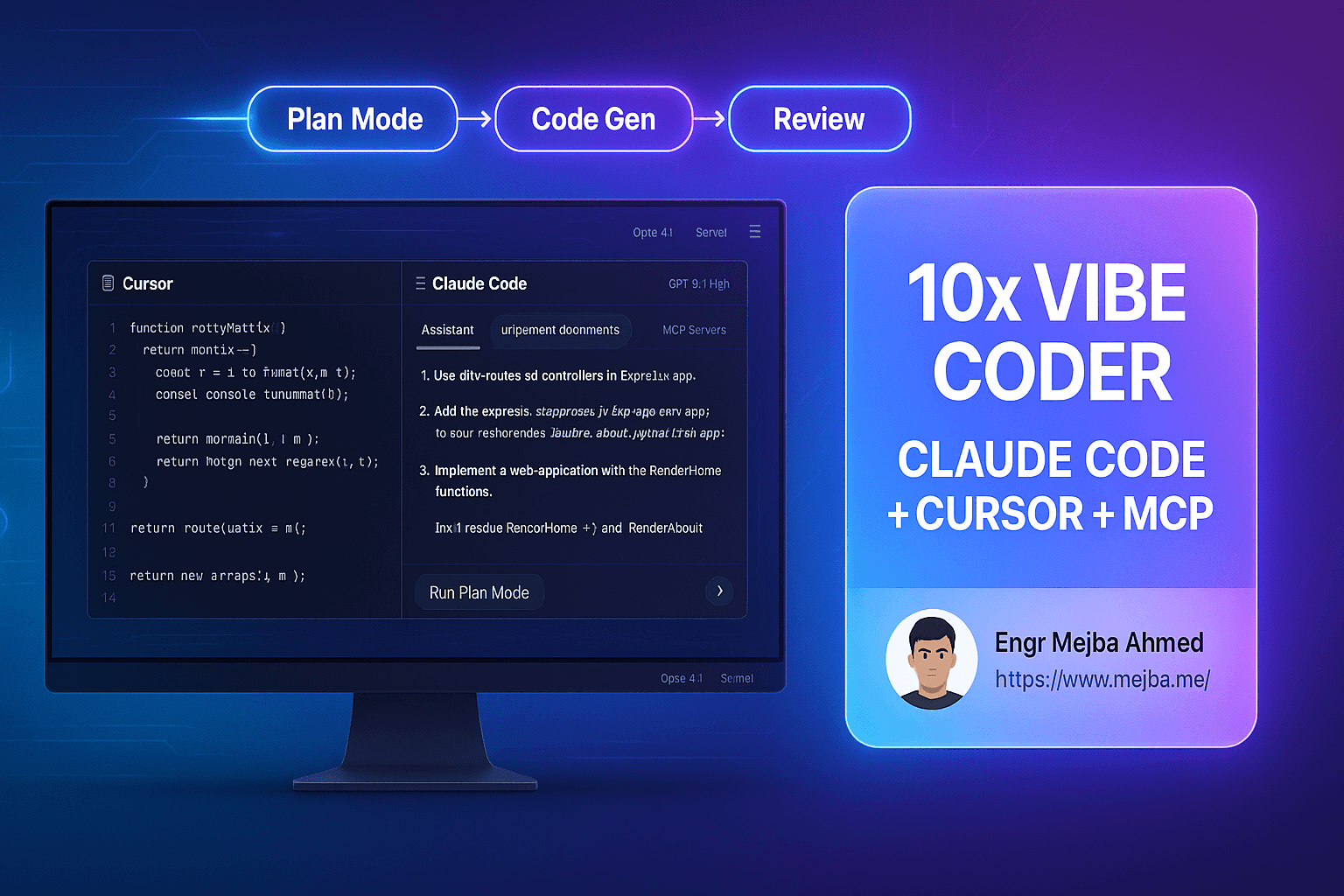
Picture this setup: Cursor takes up the main portion of your screen as your primary editor. On the right side, a terminal pane running Claude Code. You switch between them based on what you're building, not based on habit or brand loyalty.
For iOS projects, you edit code in Cursor, which syncs with Xcode for running and testing. For everything else, it's the same principle—Cursor for editing, Claude Code for the heavy lifting when you need it.
The magic isn't in either tool individually. It's in knowing when to reach for which one.
Model Switching Strategy: The Real Secret
Here's where most developers get it wrong. They pick one model and stick with it for everything. That's like using a hammer for every home improvement project. Sometimes you need a screwdriver.
| Task Type | Best Tool/Model | Why It Works |
|---|---|---|
| Complex bugs | Cursor Plan Mode or Claude Code Opus 4.1 | Superior at detailed problem solving and multi-file debugging |
| Large app architecture | Claude Code Opus 4.1 | Exceptional at big-picture planning and system design |
| UI design & animations | Claude Code Opus 4.1 | More refined handling of UI/UX interactions and micro-animations |
| Small, simple tasks | Either tool | Both handle basic tasks efficiently—use whatever's open |
| Planning & reasoning | Cursor Plan Mode (GPT 5.1 High) | Best at stepwise planning and critical thinking |
| Code execution after planning | Sonnet 4.7 / 4.5 | Coding-focused model, faster than Opus |
The key insight: Opus 4.1 is your secret weapon, not your daily driver. Reserve it for the problems that make you want to throw your laptop. Complex UI animations. Tricky architectural decisions. Bugs that have been haunting you for days.
For everything else? Sonnet handles it just fine.
Plan Mode: The 20% Productivity Hack
If you take one thing from this post, let it be this: use Plan Mode for everything.
Plan Mode forces the AI to generate a detailed step-by-step plan before writing any code. It sounds simple, but the difference in output quality is dramatic—at least 20% better results, often more.
Here's how it works in practice. Instead of the AI immediately jumping into code, it thinks through:
- What files need to be modified
- What the dependencies are between changes
- What order makes sense
- What could go wrong
Then it executes against that plan.
Cursor's Plan Mode is particularly strong here. When you pair it with GPT 5.1 High for the planning phase, then hand off to Sonnet for execution, you get the best of both worlds—strong reasoning paired with efficient coding.
The strange part? Most developers skip this step because they want to see code immediately. But spending an extra 30 seconds on planning saves you 30 minutes of debugging later.
The "ultrathink" Keyword Hack
This one's almost too good to share.
In Claude Code, there's a special keyword that makes Claude "think harder" about problems: ultrathink. Drop it in your prompt when you're stuck on something genuinely difficult.
It increases response time slightly but dramatically improves solution quality. I use it constantly for:
- Complex algorithm design
- Tricky state management bugs
- Architectural decisions I'm not confident about
It's not a magic spell, but it's close.
MCP Servers: Your AI's Memory Upgrade
Here's a frustration you've definitely experienced: the AI confidently writes code using outdated API syntax, deprecated methods, or patterns from three versions ago.
MCP servers fix this.
| MCP Server | What It Does | Why It Matters |
|---|---|---|
| Context7 | Provides latest, compressed documentation for AI to reference | No more hallucinated APIs or deprecated methods |
| Supabase MCP | Automates database setup and security rules | Faster backend config, proper RLS policies |
Context7 is particularly valuable. It gives your AI model access to up-to-date, LLM-formatted documentation. When you ask Claude to build something with a specific library, it's pulling from current docs—not training data that might be months or years old.
Supabase MCP goes a step further. It can actually set up your database tables, configure row-level security, and handle backend configuration. Word of caution though: be careful in production. These tools have real power, which means real potential for accidents.
Dictation: The Prompt Quality Multiplier
I know, I know. Talking to your computer feels weird.
But here's what I've learned: the developers getting the best AI outputs aren't typing their prompts. They're dictating them using tools like Whisper Flow.
Why does this work?
- You naturally provide more detail when speaking
- You explain context you'd skip when typing
- You describe the "why" behind what you want, not just the "what"
Whisper Flow specifically handles developer terminology well—it doesn't mangle camelCase function names or confuse npm with "NPM."
Try it once. Dictate a detailed prompt describing exactly what animation sequence you want, what the timing should be, what should happen on error states. Compare that output to your usual typed prompt.
The difference is noticeable.
AI Code Review: Your Virtual Team Member
This is non-negotiable for solo developers.
When you don't have teammates reviewing your code, you need automated safety nets. Tools like Bugbot and Cloud Code automatically review your GitHub pull requests for:
- Security vulnerabilities
- Common bugs
- Code quality issues
- Performance concerns
I won't ship anything to production without running it through automated review first. It's not about doubting my abilities—it's about acknowledging that I'm human, I make mistakes, and catching them before users do is part of professionalism.
Putting It All Together: The Complete Workflow
Here's what a typical development session looks like:
Setup:
- Cursor open as main editor
- Claude Code running in right-side terminal pane
- MCP servers (Context7, Supabase) connected
- Whisper Flow ready for dictation
For a new feature:
- Dictate a detailed prompt describing what I want
- Use Cursor's Plan Mode with GPT 5.1 High to create implementation plan
- Review and approve the plan
- Let Sonnet execute the code
- For tricky UI/animation work, switch to Claude Code with Opus 4.1
- Run slow animation mode in simulator to debug timing
- Push to GitHub, let Bugbot review
- Address any issues flagged
For debugging:
- Describe the bug behavior (dictated, with details)
- If it's complex, add "ultrathink" to the prompt
- Use Claude Code for multi-file investigation
- Apply fix, verify in simulator
- Commit and review
Time investment: A production-ready animated feature might take 10-20 prompts over 1-2 hours. That's not instant, but it's 10x faster than writing it manually.
For Beginners: Where to Start
If you're new to AI coding, don't start with this full setup. It'll overwhelm you.
Start here:
- Pick one tool (I'd suggest Cursor for the familiar IDE experience)
- Learn to write good prompts—be specific, provide context
- Use Plan Mode from day one
- Add Claude Code once you hit Cursor's limits or need more power
- Integrate MCP servers once you're comfortable with the basics
- Add automated code review before your first production deploy
For mobile app development specifically, platforms like Create Anything offer a gentler on-ramp. They're more design-focused and forgiving. Graduate to Claude Code and Cursor once you're comfortable with AI prompting.
The Uncomfortable Truth
None of this replaces knowing how to code.
These tools amplify your abilities—they don't create them from nothing. When Claude produces broken code, you need to understand why it's broken. When Cursor's plan doesn't make sense, you need the experience to push back.
The developers succeeding with AI tools aren't the ones who type "build me an app" and hope for the best. They're the ones who bring domain knowledge, clear communication, and technical judgment to every prompt.
AI is a multiplier. Zero times ten is still zero.
What Changed for Me
A year ago, I would've spent days on a feature that now takes hours. Not because I'm smarter, but because I've learned to leverage the right tools for the right problems.
The dual-tool setup—Claude Code plus Cursor—isn't about being clever. It's about being practical. Both tools have strengths. Both have weaknesses. Using them together means you're never limited by either one's constraints.
The developers building real products with AI aren't married to any single tool. They're pragmatists who use whatever works.
That's the real 10x mindset.
🤝 Hire / Work with me:
- 🔗 Fiverr (custom builds, integrations, performance): fiverr.com/s/EgxYmWD
- 🌐 Mejba Personal Portfolio: mejba.me
- 🏢 Ramlit Limited: ramlit.com
- 🎨 ColorPark Creative Agency: colorpark.io
- 🛡 xCyberSecurity Global Services: xcybersecurity.io