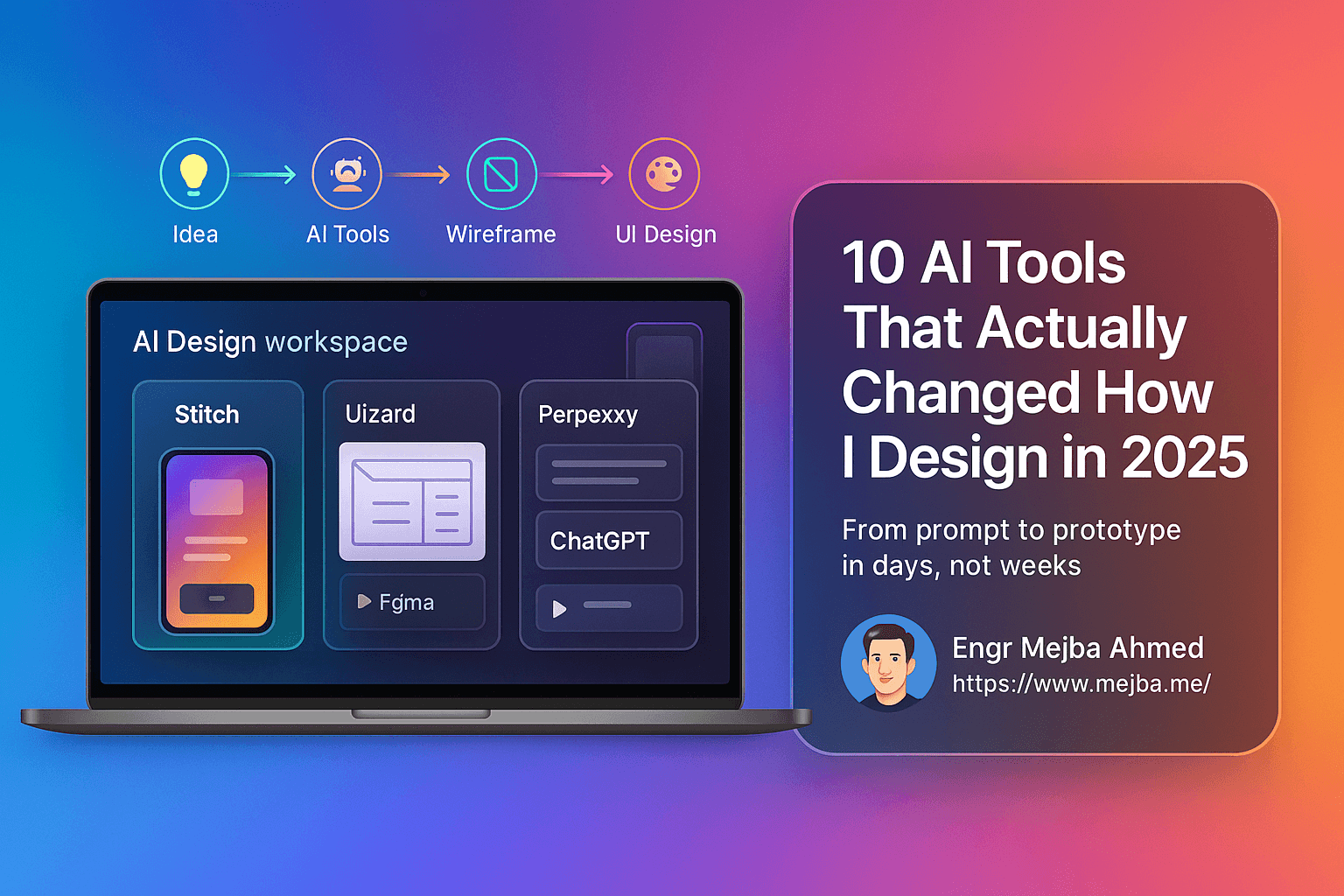
10 AI Tools That Actually Changed How I Design in 2025
"AI will replace designers."
I've heard that phrase so many times this year that it's lost all meaning. But here's the thing—after spending the last several months actually using these tools in real projects, I've realized the conversation is completely backwards.
AI isn't replacing designers. It's replacing the parts of design that were never really design in the first place.
You know those hours spent manually creating wireframe variations? The endless back-and-forth exporting mockups to test a single user flow? The rabbit hole of researching competitor color palettes? That stuff was eating up 60% of my week. And honestly? It wasn't making my designs better. It was just making me tired.
So I started experimenting. Not with every shiny AI tool that popped up on Product Hunt, but with tools that actually solved specific problems in my workflow. Some of them flopped. Others completely changed how I work.
Here are the ten that stuck.
The Problem with Traditional Design Workflows
Before diving into tools, let's be honest about what's broken.
Traditional UI/UX workflows look something like this: sketch ideas, build wireframes manually, create high-fidelity mockups, export to prototyping tools, build interactive demos, test with users, document feedback, iterate, repeat. Each step takes hours. Each handoff introduces friction.
I used to spend entire afternoons just getting from concept to something clickable. By the time I had a prototype ready for testing, I'd already invested so much time that I was emotionally attached to it. Not great for objective iteration.
The real pain points:
- Manual wireframing eats creative energy
- Prototyping tools require rebuilding what you already designed
- Research takes forever and often surfaces outdated information
- Writing UI copy feels like an afterthought
- Finding the right icons and images becomes a scavenger hunt
- Color palette decisions paralyze progress
These aren't design problems. They're logistics problems. And that's exactly where AI tools shine.
Smart Design Tools: From Prompt to Prototype
Google Stitch
This one surprised me the most.
Google Stitch takes a text prompt and generates complete app or web designs—not just one screen, but the full set. I tested it with a food ordering app concept, and it generated a home screen, menu pages, cart, and checkout flow in about thirty seconds.
Thirty seconds.
The designs weren't perfect. They never are. But they were starting points—solid foundations I could export directly to Figma and refine. Instead of spending two hours on initial layouts, I spent that time on the details that actually matter.
What makes it useful:
- Generates complete screen sets, not isolated components
- Theme customization (colors, fonts, shapes) before export
- Direct export to Figma and Adobe XD
- Works surprisingly well for mobile-first designs
The strange part? I've started using it even when I have clear ideas. There's something about seeing an AI interpretation that helps me articulate what I actually want. It's like having a conversation with a very fast sketch artist.
Uizard
Uizard takes a similar approach but leans harder into templates and customization. You can start from a prompt, but you can also upload sketches or screenshots and have it convert them into editable designs.
I've used it for rapid client presentations. When a client describes something vague like "I want it to feel modern but warm," I can generate three or four variations in minutes, show them the options, and immediately understand their preferences before investing real time.
Best for: Quick concept validation, client communication, converting hand sketches to digital
Interactive Prototyping: Making Designs Clickable
Google AI Studio
Here's where things get interesting.
Google AI Studio lets you upload design files (HTML exports work great) and creates interactive prototypes automatically. Not just "click this button, go to that screen" interactions—actual functional simulations where you can test user flows like navigation, adding items to cart, even checkout processes.
I uploaded a hotel booking app design and within minutes had a working prototype where users could search properties, filter results, and complete a booking. No coding. No manual hotspot mapping.
The workflow:
- Export designs as HTML from Figma
- Upload to Google AI Studio
- Let it analyze and create interactions
- Test the flow immediately
It's not replacing proper development testing, but for early-stage user feedback? Game changer.
Lovable AI
Lovable takes this further. Upload your designs, and it converts them into fully interactive demos with no coding required. The demos support realistic interactions—scrolling, form inputs, transitions, the works.
I've used it for stakeholder presentations when I needed something more polished than a prototype but wasn't ready for development. The demos feel real enough that feedback focuses on UX decisions rather than "is this what the final thing will look like?"
Best for: Stakeholder demos, user testing, validating complex interactions
UX Research: Actually Useful Information
Perplexity
Research used to be my least favorite part of the process. Hours of googling, cross-referencing sources, trying to figure out which information was current and which was outdated.
Perplexity changed that completely.
It's not just a search engine. It gathers information from multiple sources, synthesizes it into coherent summaries, and cites everything so you can verify. I've used it for competitive analysis, user behavior research, market trends—all the stuff that used to take entire afternoons.
Example prompt I actually used: "What are the current best practices for mobile checkout UX in food delivery apps? Include recent studies on cart abandonment."
Got a detailed summary with citations in about thirty seconds. The research wasn't exhaustive, but it was enough to inform my design decisions without spending half a day in Google Scholar.
Pro tip: Ask follow-up questions. Perplexity maintains context, so you can drill deeper into specific areas without re-explaining your project.
UX Writing: Copy That Doesn't Sound Like a Robot
ChatGPT
I know, I know. Everyone's using ChatGPT. But specifically for UX writing, it's become genuinely useful.
The trick is uploading your actual designs. I export screens from Figma, upload them to ChatGPT, and ask for specific copy suggestions. Button labels, error messages, onboarding text, empty states—all the microcopy that makes or breaks user experience.
What I've found works:
- Upload the design first, then ask for copy
- Be specific about tone ("friendly but professional" vs. "casual and fun")
- Ask for multiple options so you can compare
- Request feedback on existing copy, not just new suggestions
The copy isn't always perfect, but it's a solid starting point. And when you're staring at placeholder text for the fifteenth time trying to think of the right error message, having something to react to is infinitely better than a blank slate.
What I've learned: ChatGPT is better at understanding context when it can see the design. A button that says "Submit" might be fine in one context and terrible in another. Showing the full screen helps it give relevant suggestions.
Visual Assets: Icons and Images That Actually Match
GravityWrite
Finding icons and images that match your design's style used to mean hours on stock sites, followed by hours in Illustrator adjusting colors and sizes.
GravityWrite generates custom icons and images based on prompts. You describe your design's style, color palette, and what you need, and it creates matching assets.
I was working on a wellness app with a soft, organic aesthetic. Instead of hunting for icons that fit, I described the style and generated a full set of consistent icons in about ten minutes. They needed minor tweaks, but the time savings were massive.
Useful features:
- Background removal built in
- Pre-built templates for common use cases
- Style consistency across multiple generations
- Quick iteration on concepts
Leonardo.AI
Leonardo approaches image generation differently—it's more focused on artistic control and style matching. I use it when I need hero images, illustrations, or anything that requires a specific aesthetic.
Best for: Custom illustrations, hero images, artistic assets that need to match brand guidelines
The learning curve is steeper than GravityWrite, but the output quality for specific use cases is worth it.
Color: The Decision That Paralyzes Everyone
Coolors.co
I'll be honest—this isn't an AI tool. But it's become so essential to my workflow that leaving it out felt wrong.
Color decisions paralyze designers. We've all been there, cycling through palettes, second-guessing combinations, spending way too long on something that should be a quick decision.
Coolors solves this through exploration. Generate random palettes, lock colors you like, generate again. Explore trending combinations. Extract palettes from images.
The feature that changed everything: Image palette extraction. Upload a photo that captures the mood you want, and Coolors extracts a harmonious palette. I've used this with client inspiration images to create palettes that feel right without endless iteration.
Workflow tip: Start with image extraction from mood board photos, then adjust from there. It's faster than starting from scratch.
Figma: The Hub That Connects Everything
Figma
Figma deserves mention because it's become the central hub where all these tools connect. Most of these AI tools export directly to Figma or integrate with it. Your AI-generated designs from Google Stitch? Export to Figma. Need to refine that Uizard concept? Export to Figma. Want to hand off to developers? Figma's got that too.
The workflow I've landed on:
- Generate initial concepts with Google Stitch or Uizard
- Export to Figma for refinement
- Create interactive prototypes with Google AI Studio or Lovable
- Generate copy with ChatGPT (uploading Figma exports)
- Create custom assets with GravityWrite or Leonardo
- Finalize colors with Coolors
Figma isn't doing the AI generation, but it's the canvas where everything comes together.
The Real Workflow: How These Tools Connect
Here's what my actual design process looks like now:
Day 1: Concept
- Brain dump the project requirements
- Run research queries through Perplexity (30 min vs. half a day)
- Generate initial concepts with Google Stitch or Uizard
- Pick the strongest direction, export to Figma
Day 2: Refinement
- Refine layouts and components in Figma
- Generate custom icons and images with GravityWrite
- Lock in colors using Coolors
- Write initial copy with ChatGPT (uploading designs for context)
Day 3: Prototype
- Export to Google AI Studio or Lovable for interactive prototype
- Test user flows internally
- Gather initial feedback
Day 4-5: Iterate
- Refine based on feedback
- Prepare stakeholder presentation
- Document design decisions
What used to take two weeks now takes less than one. And I'm not cutting corners—I'm cutting logistics.
"But Will AI Replace Designers?"
Let's address this directly.
No. But it will replace designers who refuse to adapt.
The designers who insist on manually creating every wireframe, refusing to use AI-generated starting points, are like accountants who refuse to use spreadsheets. Technically possible. Professionally questionable.
Here's what AI can't do:
- Understand the nuanced business context of your project
- Make judgment calls about tradeoffs
- Advocate for users in stakeholder meetings
- Build relationships with clients
- Know when to break design rules
Here's what AI does really well:
- Generate variations quickly
- Handle repetitive production tasks
- Surface relevant research
- Create starting points for iteration
The magic happens when you use AI for the second list, freeing yourself to focus on the first.
What I'd Tell Myself a Year Ago
If I could go back to 2024, here's what I'd say:
Start small. Pick one tool, solve one problem. Don't try to overhaul your entire workflow at once. I started with Perplexity for research because that was my biggest time sink. Once that was working, I added design generation. Then prototyping. Gradual adoption sticks.
Be skeptical but not closed. Every tool I've mentioned required experimentation. Some worked immediately, others took time to figure out. A few tools I tried flopped completely. That's fine. The goal isn't to use every AI tool—it's to use the ones that actually help.
Don't trust blindly. AI-generated designs need refinement. AI-written copy needs editing. AI research needs verification. These tools are collaborators, not replacements. Treat their output as drafts, not deliverables.
Focus on what AI can't do. The more I've automated the logistics of design, the more time I have for the parts that actually require human judgment. That's where real value lives.
Where This Is Heading
I've been doing this long enough to know that the tools I'm using today will look primitive in two years. That's fine. The principle stays the same: use technology to handle logistics so you can focus on design.
The designers who thrive won't be the ones who resist AI or the ones who trust it blindly. They'll be the ones who figure out how to collaborate with it effectively.
You're not being replaced. You're being amplified.
The question isn't whether to use these tools. It's how quickly you can figure out which ones work for you.
🤝 Hire / Work with me:
- 🔗 Fiverr (custom builds, integrations, performance): fiverr.com/s/EgxYmWD
- 🌐 Mejba Personal Portfolio: mejba.me
- 🏢 Ramlit Limited: ramlit.com
- 🎨 ColorPark Creative Agency: colorpark.io
- 🛡 xCyberSecurity Global Services: xcybersecurity.io