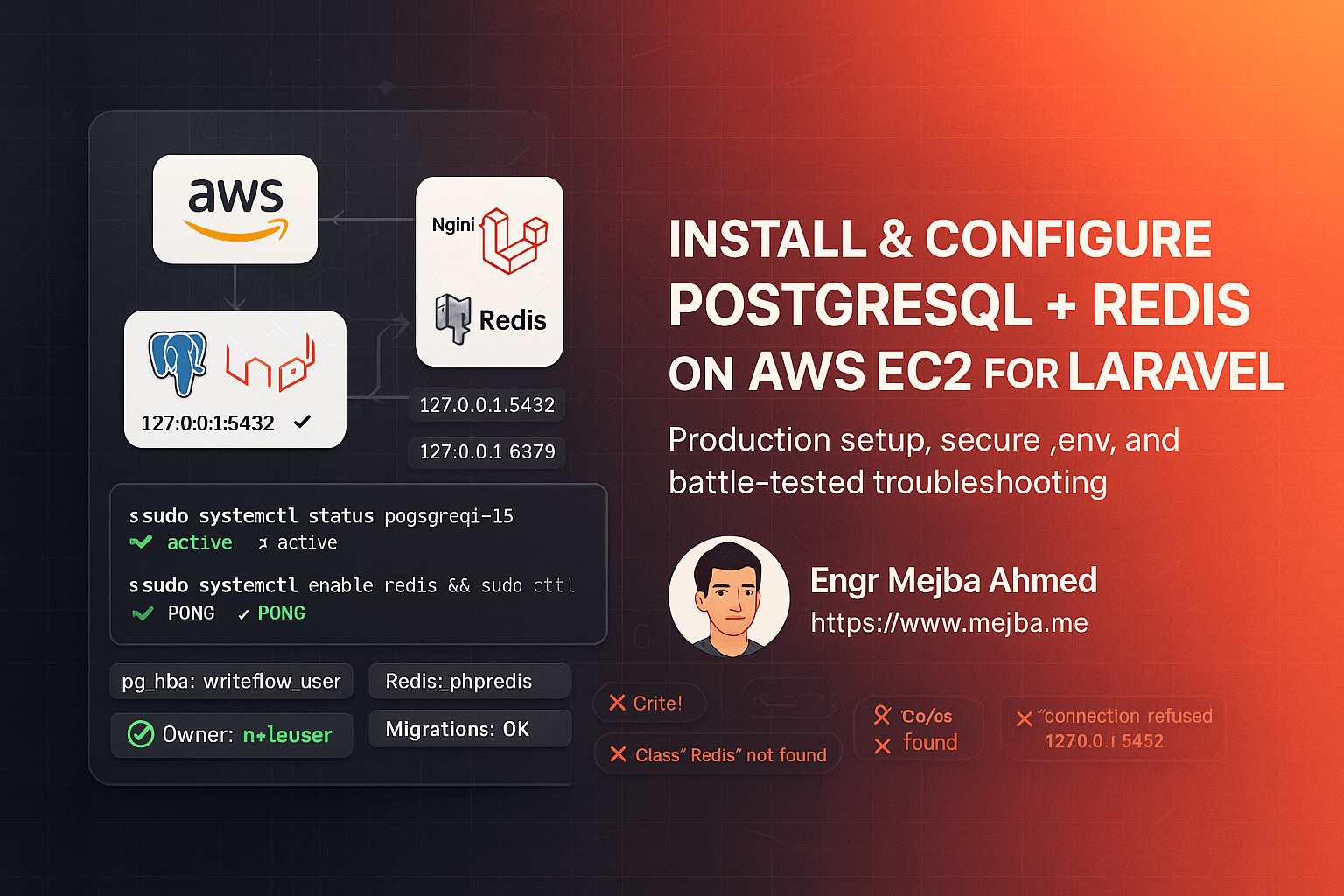
Introduction
You’ve shipped a great Laravel app to an EC2 instance. Nginx is humming, PHP-FPM is warm, and then—wham—your logs explode with:
SQLSTATE[08006] [7] connection to server at "127.0.0.1", port 5432 failed: Connection refusedFATAL: role "ec2-user" does not existSQLSTATE[42501]: Insufficient privilege: permission denied for schema publicClass "Redis" not foundorConnection refused [tcp://127.0.0.1:6379]
If that looks familiar, this guide is for you.
In this premium, end-to-end tutorial I’ll show you how to install and production-configure PostgreSQL and Redis locally on the same AWS EC2 machine that runs Laravel—and how to troubleshoot and fix the most common errors you’ll face along the way. You’ll get a blueprint you can repeat for every project: lean, secure, and fast.
What you’ll get by the end:
- A working PostgreSQL 15 and Redis stack on Amazon Linux (or similar) with systemd services and persistence.
- A hardened Laravel .env that uses Redis for cache/sessions/queues and PostgreSQL for the database.
- A quick-hit troubleshooting section that resolves connection refused, missing roles, permission errors, and PHP Redis extension issues.
- Practical performance and reliability tips: small-instance tuning, log checks, and production hygiene.
Let’s ship.
What You’ll Need
- An AWS EC2 instance (t3.micro or larger). Amazon Linux 2023 is perfect; commands map closely to RHEL/CentOS with
dnf. - A security group allowing inbound 80/443 (HTTP/HTTPS) from the internet and 22 (SSH) from your IP. Do not open PostgreSQL (5432) or Redis (6379) to the public internet.
- A deployed Laravel codebase (Nginx + PHP-FPM) with SSH access as
ec2-user(or similar).
Install Packages Required by Laravel + DB Stack
The commands below target Amazon Linux 2023. For Ubuntu, replace
dnfwithapt.
# Always start here
sudo dnf -y update

# PHP & common extensions (adjust versions if needed)
sudo dnf -y install php-cli php-fpm php-common php-opcache php-mbstring php-xml php-curl php-zip php-gd php-intl

# Postgres client + PHP extension
sudo dnf -y install postgresql postgresql15 postgresql15-server php-pgsql

# Redis server + PHP Redis extension
# On Amazon Linux 2023, redis is typically provided as redis6 in amazon-linux-extras.
sudo dnf -y install redis || true
sudo amazon-linux-extras enable redis6 || true
sudo dnf -y install redis
sudo dnf -y install php-pecl-redis || sudo dnf -y install php-redis

# Git & tools
sudo dnf -y install git unzip
Why both postgresql and postgresql15*?
On AL2023, postgresql15 is the server you want. The generic postgresql package provides client utilities. If postgresql15 isn’t found, enable the right repo or use the OS-provided PostgreSQL major version.
Restart PHP-FPM after PHP extension installs:
sudo systemctl restart php-fpm
Initialize and Start PostgreSQL 15
Initialize the data directory as the postgres system user:
# Initialize cluster
sudo -u postgres /usr/bin/initdb -D /var/lib/pgsql/15/data

# (If initdb isn't found, locate it)
# sudo find / -type f -name initdb 2>/dev/null

# Create a systemd service for PG15 if your image lacks the unit:
cat <<'EOF' | sudo tee /etc/systemd/system/postgresql-15.service
[Unit]
Description=PostgreSQL 15 database server
After=network.target

[Service]
Type=notify
User=postgres
ExecStart=/usr/bin/pg_ctl -D /var/lib/pgsql/15/data -l /var/lib/pgsql/15/data/serverlog start
ExecStop=/usr/bin/pg_ctl -D /var/lib/pgsql/15/data stop
ExecReload=/usr/bin/pg_ctl -D /var/lib/pgsql/15/data reload
KillMode=mixed

[Install]
WantedBy=multi-user.target
EOF

sudo systemctl daemon-reload
sudo systemctl enable postgresql-15
sudo systemctl start postgresql-15
sudo systemctl status postgresql-15 --no-pager
If the status shows active (running), you’re good.
Create Database, User, and Secure Local Auth
Enter the Postgres shell:
sudo -u postgres psql
Create a dedicated database/user and grant ownership (this avoids the dreaded “permission denied for schema public”):
-- inside psql
CREATE DATABASE writeflow;
CREATE USER writeflow_user WITH ENCRYPTED PASSWORD 'StrongPassword123!';
GRANT ALL PRIVILEGES ON DATABASE writeflow TO writeflow_user;

\c writeflow
ALTER SCHEMA public OWNER TO writeflow_user;

-- optional: make sure future objects default to the app user
ALTER DATABASE writeflow OWNER TO writeflow_user;
Harden local authentication to use MD5 for local TCP connections (or peer/ident if you prefer sockets):
sudo nano /var/lib/pgsql/15/data/pg_hba.conf
Add or ensure these lines are present near the top:
# TYPE  DATABASE        USER            ADDRESS                 METHOD
local   all             all                                     peer
host    all             all             127.0.0.1/32            md5
host    all             all             ::1/128                 md5
Reload PostgreSQL:
sudo systemctl restart postgresql-15
Quick tests:
PGPASSWORD='StrongPassword123!' psql -U writeflow_user -d writeflow -h 127.0.0.1 -c "select now();"
If that returns a timestamp, your DB auth is correct.
Install & Start Redis (and Make It Persistent)
# Install (already done above); start and enable
sudo systemctl enable redis
sudo systemctl start redis
sudo systemctl status redis --no-pager

# Smoke test
redis-cli ping
# Expect: PONG
If your image ships Redis 6 as a different unit name (e.g., redis6), simply adapt:
sudo systemctl enable redis6
sudo systemctl start redis6
sudo systemctl status redis6 --no-pager
Bind + Security: For local-only use, bind to 127.0.0.1 and keep protected mode on.
sudo sed -i 's/^#\?bind .*/bind 127.0.0.1/' /etc/redis/redis.conf || true
sudo sed -i 's/^protected-mode .*/protected-mode yes/' /etc/redis/redis.conf || true
sudo systemctl restart redis || sudo systemctl restart redis6
Configure Laravel’s .env
In your app root:
nano /var/www/your-app/.env
Use this clean baseline for DB and Redis:
APP_ENV=production
APP_DEBUG=false
APP_URL=https://your-domain.com

# --- Database (PostgreSQL)
DB_CONNECTION=pgsql
DB_HOST=127.0.0.1
DB_PORT=5432
DB_DATABASE=writeflow
DB_USERNAME=writeflow_user
DB_PASSWORD=

# --- Cache/Session/Queue via Redis
CACHE_DRIVER=redis
SESSION_DRIVER=redis
QUEUE_CONNECTION=redis

REDIS_CLIENT=phpredis
REDIS_HOST=127.0.0.1
REDIS_PASSWORD=null
REDIS_PORT=6379
Important: ensure PHP’s Redis extension is loaded. After php-pecl-redis install, PHP-FPM restart usually picks it up:
php -m | grep -i redis     # should print: redis
sudo systemctl restart php-fpm
Migrate & Optimize the Laravel App
From your app directory:
php artisan key:generate
php artisan config:clear
php artisan cache:clear
php artisan view:clear

# Run fresh or standard migrate as needed
php artisan migrate --force
If you hit permission denied for schema public, re-run the Postgres grants (see Section 3). Also, ensure the database owner is your app user and not postgres.
Fix Every Common Error (Troubleshooting Vault)
A) SQLSTATE[08006] [7] connection to server at "127.0.0.1", port 5432 failed: Connection refused
Meaning: The PG server isn’t listening, crashed, or blocked.
Fix checklist:
sudo systemctl status postgresql-15 --no-pager
journalctl -xeu postgresql-15 --no-pager
ss -ltnp | grep 5432
- If the unit is inactive/failed, check
serverlogin/var/lib/pgsql/15/data/. - Verify
pg_hba.confandpostgresql.conf(listen_addresses). For local TCP, ensurelisten_addresses = 'localhost'or'*'(local only is fine). - Ensure your
.envuses the correct DB name, user, and password.
B) FATAL: role "ec2-user" does not exist
Meaning: Laravel tried to authenticate with a Linux username (often happens if .env isn’t loaded or env caching is stale).
Fix:
- Verify
.envvalues andphp artisan config:clear. - Confirm DB credentials in
config/database.phpuseenv()and not hardcoded fallbacks that point toec2-user.
C) SQLSTATE[42501]: Insufficient privilege: permission denied for schema public
Meaning: Your app user doesn’t own schema or lack permissions.
Fix in psql:
\c writeflow
ALTER SCHEMA public OWNER TO writeflow_user;
GRANT ALL PRIVILEGES ON ALL TABLES IN SCHEMA public TO writeflow_user;
GRANT ALL PRIVILEGES ON ALL SEQUENCES IN SCHEMA public TO writeflow_user;
ALTER DATABASE writeflow OWNER TO writeflow_user;
D) Class "Redis" not found
Meaning: PHP Redis extension not loaded.
Fix:
sudo dnf -y install php-pecl-redis || sudo dnf -y install php-redis
php -m | grep -i redis
sudo systemctl restart php-fpm
Ensure .env uses REDIS_CLIENT=phpredis.
E) Redis connection refused [tcp://127.0.0.1:6379]
Meaning: Redis service isn’t running, or bound to a different IP.
Fix:
sudo systemctl status redis --no-pager || sudo systemctl status redis6 --no-pager
redis-cli ping
ss -ltnp | grep 6379
- If the unit is down,
sudo systemctl start redisandsudo systemctl enable redis. - Ensure
bind 127.0.0.1in/etc/redis/redis.conf, then restart.
F) migrations table does not exist (after you know it does)
Meaning: Config cache pointing at wrong DB, or .env not read.
Fix:
php artisan config:clear
php artisan cache:clear
php artisan migrate --force
Small-Instance Performance Wins
You don’t need a DB admin to avoid out-of-memory errors.
PostgreSQL (on t3.micro/t3.small):
- Keep
max_connectionsmodest (e.g., 100 or less). - Use sensible shared buffers:
shared_buffers = 128MB. - Let
effective_cache_size = 1GBon small boxes (if memory allows).
PHP-FPM:
- Reduce
pm.max_childrento match RAM. On small boxes, 5–10 is often plenty.
Redis:
- Keep it local-only with
bind 127.0.0.1and default persistence for sessions/queues.
Security & Reliability Hygiene
-
Security Groups: Never expose 5432 or 6379 publicly. Keep them bound to 127.0.0.1 only.
-
Backups: Nightly
pg_dumpto S3:# /usr/local/bin/pg-backup.sh #!/usr/bin/env bash set -e TS=$(date +%F-%H%M) PGPASSWORD='StrongPassword123!' pg_dump -U writeflow_user -h 127.0.0.1 writeflow \ | gzip > /tmp/writeflow-$TS.sql.gz aws s3 cp /tmp/writeflow-$TS.sql.gz s3://your-db-backups/ rm -f /tmp/writeflow-$TS.sql.gzThen cron it:
sudo crontab -e 0 3 * * * /usr/local/bin/pg-backup.sh >> /var/log/pg-backup.log 2>&1 -
Logs:
- PostgreSQL:
/var/lib/pgsql/15/data/serverlog - Redis:
journalctl -xeu redis - Nginx/PHP:
/var/log/nginx/access.log,/var/log/nginx/error.log,journalctl -xeu php-fpm
- PostgreSQL:
End-to-End Smoke Test Checklist
sudo systemctl status postgresql-15→ active (running)PGPASSWORD='StrongPassword123!' psql -U writeflow_user -d writeflow -h 127.0.0.1 -c "select version();"→ returns versionsudo systemctl status redis(orredis6) → active (running)redis-cli ping→ PONGphp -m | grep -i redis→ redisphp artisan migrate --force→ DONE- Login/register flows work; sessions persist; caches warm.
Bullet Points / Quick Takeaways
- Never expose DB/Redis to the internet. Bind to
127.0.0.1, secure via security groups. - Fix “role does not exist” by ensuring
.envis loaded and the correct DB user is created. - Fix “permission denied for schema public” by transferring schema/database ownership to your app user.
- Fix Redis “Class not found” by installing
php-pecl-redisand restarting PHP-FPM. - Fix Redis “Connection refused” by enabling and starting the Redis service, then confirming it listens on 127.0.0.1:6379.
- Lock in reliability: health-check with
systemctlandjournalctl, and back up nightly to S3.
Call to Action (CTA)
Want a battle-tested deployment checklist (Nginx, PHP-FPM, SSL, Postgres, Redis) you can paste into your terminal? Need this done right—fast? 👉 Purchase my Fiverr gig : https://www.fiverr.com/s/DBjDz4a
FAQ (High-Intent Questions)
Q1) Should I use local PostgreSQL/Redis or managed services (RDS/ElastiCache)? If you’re early-stage or cost-conscious, local is lean and fast to ship. As your traffic grows or you need multi-AZ failover, move to RDS + ElastiCache for managed reliability and scaling.
Q2) Do I need to open port 5432 or 6379 externally? No. Your Laravel app connects locally. Keep both closed to the internet and bound to 127.0.0.1.
Q3) How do I fix “SQLSTATE[08006] connection refused” even though PostgreSQL is running?
Verify it’s listening on 127.0.0.1:5432 (ss -ltnp | grep 5432), confirm .env credentials, and check pg_hba.conf for local md5 rules. Finally, php artisan config:clear to flush stale env cache.
Q4) Redis is running but sessions still fail—why?
Confirm php -m | grep -i redis shows the extension. Ensure .env has REDIS_CLIENT=phpredis and restart php-fpm. Also verify storage/framework/sessions is not being used by mistake (check SESSION_DRIVER).
Q5) How do I avoid “permission denied for schema public” on new tables? After creating the DB, set the owner to your app user and run:
ALTER SCHEMA public OWNER TO writeflow_user;
GRANT ALL PRIVILEGES ON ALL TABLES IN SCHEMA public TO writeflow_user;
GRANT ALL PRIVILEGES ON ALL SEQUENCES IN SCHEMA public TO writeflow_user;
This fixes both current and future objects.
Q6) What about SSL/TLS to the database? For same-host connections (127.0.0.1), SSL isn’t necessary. If you later move DB to a separate instance or RDS, enable SSL and restrict connections via security groups.
Final Word
You don’t need a massive DevOps budget to run fast, stable Laravel apps on AWS. With this guide you’ve:
- Set up PostgreSQL 15 + Redis locally,
- Wired Laravel for performance (Redis cache/sessions/queues),
- Solved the high-friction errors that block most teams on day one.
Pin this guide. Reuse it next launch. And when you’re ready to scale, you’ll already be production-ready.