Switch to Dark
AI Tools

Why Ghostty Terminal Is My Fastest Claude Code Workflow

Why Ghostty Terminal Is My Fastest Claude Code Workflow I spent two weeks testing every possible way to use Claude Code. Extensions inside Cursor. The...

12 min read
2,308 words
Why Ghostty Terminal Is My Fastest Claude Code Workflow
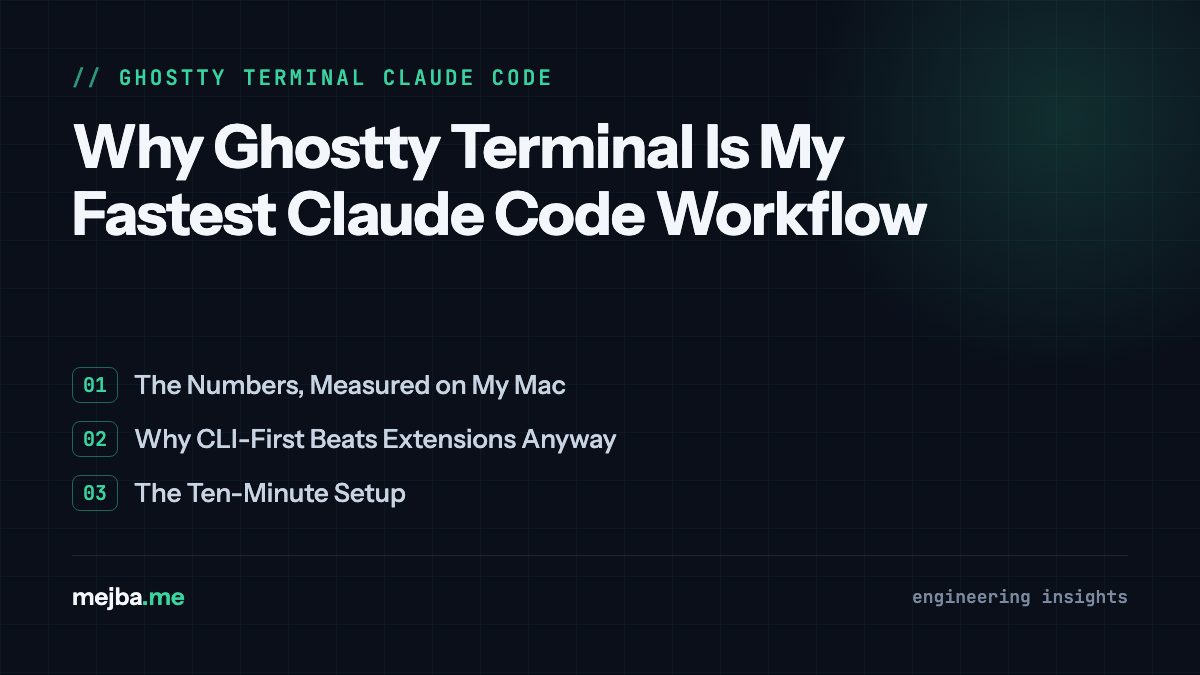
Featured image for Why Ghostty Terminal Is My Fastest Claude Code Workflow

Why Ghostty Terminal Is My Fastest Claude Code Workflow

I spent two weeks testing every possible way to use Claude Code. Extensions inside Cursor. The desktop app. CLI running in VS Code's integrated terminal. Standalone terminals. I even tried some unconventional setups just to be thorough.

After all that testing, one setup dominated everything else: Ghostty terminal running Claude Code CLI.

This isn't about preference or aesthetics. The performance gap is so significant that I can't imagine going back to the other methods. When you can run dozens of Claude Code instances simultaneously without your laptop fans screaming for mercy, you know you've found something worth sharing.

Here's the complete workflow I've refined over months of daily use, and why it's fundamentally changed how I build with AI.


The Problem Nobody Talks About

Most Claude Code tutorials show you the happy path. Install an extension, open a project, start prompting. What they don't show is what happens when you're a serious builder working on multiple projects.

I run a software agency. On any given day, I'm juggling three to five active projects. Maybe a client's Laravel backend needs a new API endpoint. A React dashboard needs performance fixes. A Python automation script is waiting for debugging. Each project needs its own Claude Code conversation with full context.

Try opening three VS Code windows, each with Claude Code running. Your computer transforms into a space heater. Memory usage skyrockets. The interface becomes sluggish. You spend more time waiting for your tools than actually building.

I measured this on my MacBook Pro. Two VS Code windows with Claude Code extensions: 8GB of RAM consumed, noticeable input lag, fans running continuously. The same two projects in Ghostty terminal tabs: under 500MB total, instant response, silent operation.

The difference isn't subtle. It's the difference between productive flow and constant frustration.


Why Terminal CLI Beats Everything Else

Before diving into the Ghostty-specific advantages, let me explain why the terminal CLI approach fundamentally outperforms extensions and desktop apps.

Feature parity happens first in the CLI. Claude Code's terminal interface receives updates before any other client. When Anthropic ships Plan Mode improvements, the CLI gets them immediately. Extension users wait days or weeks for updates to propagate through their IDE's extension marketplace.

I noticed this during the Plan Mode rollout. Terminal users had the full iterative questioning feature while extension users were still on the basic version. Those extra questions make a real difference in output quality—Claude understands your requirements more deeply when it can ask clarifying questions.

The CLI forces better prompting habits. Without a fancy GUI, you focus on what matters: clear, detailed prompts. You learn to give Claude the context it needs upfront because there's no interface magic to compensate for vague instructions.

Resource efficiency compounds over time. A lightweight tool doesn't just save RAM in the moment. It means your laptop battery lasts longer. Your fans stay quiet during video calls. Your computer remains responsive when you need to quickly check something in another app.

These benefits apply to any terminal. But Ghostty takes them further.


What Makes Ghostty Different

Ghostty isn't just another terminal emulator. Built by Mitchell Hashimoto (the creator of Vagrant, Terraform, and HashiCorp), it's designed with a specific philosophy: maximum performance with genuine usability.

Native rendering means actual speed. Ghostty uses native platform rendering instead of Electron or web technologies. Every keystroke responds instantly. Scrolling through thousands of lines of Claude's output feels buttery smooth.

Splits and tabs are first-class features. You can split any terminal window horizontally or vertically with simple keyboard shortcuts. Each split runs independently. I keep Claude Code in the main split and my development server in a smaller split below. When Claude makes changes, I immediately see the server reload and any errors appear.

Thousands of themes with actual good defaults. I spent too much of my early developer career fiddling with terminal colors. Ghostty ships with beautiful themes that work out of the box. Pick one, move on, build things.

Configuration is simple but powerful. One text file controls everything. No JSON schemas to memorize, no buried settings menus. If you want to change something, it's obvious how.


Setting Up the Workflow

Getting this running takes about ten minutes. Here's exactly what I did.

Step 1: Install Ghostty

Download from ghostty.org. The installation is straightforward on Mac—just drag to Applications. Linux users can build from source or use their package manager.

Step 2: Install Claude Code CLI

Open Ghostty and run:

npm install -g @anthropic-ai/claude-code

If you don't have Node.js installed, grab it from nodejs.org first. I recommend the LTS version.

Step 3: Authenticate

Run claude in your terminal. It'll guide you through authentication with your Anthropic account. Make sure you have an active Claude Code subscription.

Step 4: Configure Ghostty for development

Create or edit ~/.config/ghostty/config:

theme = catppuccin-mocha
font-family = JetBrains Mono
font-size = 14
window-padding-x = 10
window-padding-y = 10

These settings give you a clean, readable interface. Adjust font size based on your display.

Step 5: Learn the key bindings

Essential Ghostty shortcuts:

  • Cmd+D (Mac) or Ctrl+Shift+E (Linux): Split horizontally
  • Cmd+Shift+D or Ctrl+Shift+O: Split vertically
  • Cmd+T or Ctrl+Shift+T: New tab
  • Cmd+[ / Cmd+]: Switch between splits

These become muscle memory within a day.


The Daily Workflow in Practice

Let me walk through a typical development session.

I open Ghostty and immediately create my workspace layout. One large split on the left for Claude Code, one smaller split on the right for my development server. I might add a tab for git operations or a second project.

I navigate to my project directory:

cd ~/projects/habit-tracker-app

Then launch Claude:

claude

Now here's where Plan Mode changes everything. Instead of just typing a prompt and hoping for the best, I activate Plan Mode with Shift+Tab twice. This tells Claude I want to plan before executing.

I describe what I'm building:

I need an AI-driven habit tracking app. Users should be able to:
- Log daily habits with timestamps
- See streak visualizations
- Get AI coaching based on their patterns
- Export data in multiple formats

The tech stack should be Next.js with TypeScript, using Prisma for the database.

With Plan Mode active, Claude doesn't immediately start coding. It asks questions:

  • "What kind of habits are we tracking—binary (done/not done) or quantitative?"
  • "Should the AI coaching be real-time or a daily summary?"
  • "What export formats are priorities—CSV, JSON, PDF?"

Each question refines the final output. By the time Claude starts generating code, it understands my requirements far better than a one-shot prompt could achieve.

Meanwhile, in my other split, I've started the dev server:

npm run dev

As Claude makes changes, I see them reflected immediately. Errors appear in real-time. I can copy an error message, paste it into Claude's conversation, and get a fix without context switching.


Multitasking Without Compromise

This is where Ghostty truly shines. I can open a second tab (Cmd+T) and start an entirely separate Claude conversation for a different project.

cd ~/projects/client-dashboard
claude

Now I have two Claude instances running. One is building my habit tracker. The other is debugging a client's React component. I switch between tabs instantly, each with full context preserved.

I've pushed this to ten simultaneous Claude instances across different projects. My laptop didn't flinch. CPU usage stayed reasonable. Memory consumption remained flat. Try that with ten VS Code windows and watch your machine melt.

This matters for how I think about AI-assisted development. Instead of treating Claude as a single-threaded assistant, I can parallelize my work. While Claude generates a complex component for Project A, I'm prompting Claude about architecture decisions for Project B. While that's processing, I switch back to see if Project A's code is ready.

The mental model shifts from "waiting for AI" to "orchestrating AI agents."


Working on the Same Project from Multiple Angles

Here's an advanced pattern I've developed. Sometimes I want different Claude conversations focusing on different aspects of the same project.

Tab 1: Feature development conversation Tab 2: Testing and debugging conversation Tab 3: Documentation and comments conversation

Each tab works on the same codebase but with different context. The feature dev Claude is deep into implementing new functionality. The testing Claude reviews code and writes test cases. The docs Claude adds JSDoc comments and README sections.

To avoid conflicts, I use git worktrees:

git worktree add ../habit-tracker-tests feature/tests
git worktree add ../habit-tracker-docs feature/docs

Each worktree gets its own Claude instance. Changes in one don't affect the others until I merge them. This is parallel development taken to its logical conclusion.


The Server Split Workflow

One pattern I use constantly: Claude Code in the main split, development server in a smaller split below.

The server split shows me immediate feedback. When Claude writes a new React component, I see the hot reload trigger. When there's a TypeScript error, it appears immediately. When an API endpoint fails, the server logs tell me exactly what went wrong.

I copy the error, switch to the Claude split, paste it, and ask for a fix. Claude sees the exact error message with full stack trace. The fix is usually accurate because it has precise error context.

This tight feedback loop accelerates development dramatically. Errors get caught and fixed within seconds instead of minutes.


When You Actually Need an Editor

I won't pretend the terminal handles everything. Sometimes I need to make manual edits. Maybe I want to reorder some code that Claude structured differently than I'd prefer. Maybe I want to add a quick console.log for debugging.

For these cases, I keep VS Code installed but not running. When I need it, I open the specific file:

code src/components/HabitCard.tsx

VS Code opens quickly because it's not already consuming resources in the background. I make my edit, save, close. The development server in my Ghostty split picks up the change.

This pattern—terminal-first with editor as occasional tool—inverts how most developers work. But it matches how AI-assisted development actually flows. Most of the time, Claude writes the code. You review, prompt for changes, and iterate. The keyboard time spent typing code yourself decreases dramatically.


Performance Comparison: Real Numbers

Let me share actual measurements from my development machine (M2 MacBook Pro, 16GB RAM):

VS Code + Claude Code Extension (2 projects)

  • RAM: 8.2GB
  • CPU (idle): 12%
  • Fan status: Active
  • Response latency: Noticeable lag on prompts

Cursor + Claude integration (2 projects)

  • RAM: 9.1GB
  • CPU (idle): 15%
  • Fan status: Active
  • Response latency: Moderate lag

Ghostty + Claude CLI (2 projects)

  • RAM: 487MB
  • CPU (idle): 1%
  • Fan status: Silent
  • Response latency: Instant

Ghostty + Claude CLI (8 projects)

  • RAM: 1.9GB
  • CPU (idle): 3%
  • Fan status: Silent
  • Response latency: Instant

The efficiency difference isn't marginal. It's an order of magnitude. This matters especially for extended coding sessions. After four hours, the IDE-based approach has my laptop uncomfortably warm and my battery half-depleted. The Ghostty approach feels like I just started.


Handling Long-Running Tasks

When Claude is working on something complex—refactoring a large component, writing comprehensive tests—you don't need to watch the output stream. Start the task, switch to another tab or split, do something else.

I've developed a habit of checking task completion with a quick tab switch. Claude's output includes clear indicators when it's done. If it's asking a question, I see it immediately. If it's finished and waiting, I can pick up where we left off.

This async-capable workflow means I'm rarely blocked. Always something else to prompt, always another project to check on.


Tips I Wish I'd Known Earlier

Use descriptive tmux-style directory naming. When you have multiple tabs, they all show "ghostty" in the tab title by default. Name your sessions or use the directory path to distinguish them.

Pipe output for reference. If Claude generates something you want to save:

claude --print "your prompt here" > output.md

This captures Claude's response directly to a file.

Customize your shell prompt. A clean PS1 that shows your current directory and git branch helps maintain context when switching between splits and tabs.

Learn Claude's CLI flags. --resume continues the last conversation. --model lets you specify different Claude variants. --print outputs to stdout without the interactive interface.


The Bigger Picture

This workflow isn't just about Ghostty or terminal efficiency. It represents a fundamental shift in how we interact with AI coding assistants.

When your tools are lightweight and fast, you experiment more. You try prompts you wouldn't have bothered with if each one meant a two-minute wait. You run more parallel explorations. You iterate faster.

When your tools support true multitasking, you think differently about project structure. Multiple Claude instances become multiple team members with different specializations. You orchestrate instead of execute.

When your feedback loop is tight, you catch problems earlier. Errors get fixed before they compound. Integration issues surface immediately.

All of these compound into something that feels qualitatively different from the standard IDE+extension approach. It's not 10% faster. It's a different way of working entirely.


What's Next

The AI coding tool landscape evolves rapidly. New models, new features, new capabilities. But the underlying principle holds: lightweight, focused tools that get out of your way will always outperform heavyweight integrated solutions.

I'll keep refining this workflow as new features land. The combination of Ghostty's performance and Claude's improving capabilities means the ceiling keeps rising.

If you're currently fighting with slow tools and memory-hungry extensions, give this approach a serious try. The initial learning curve—getting comfortable with terminal-based development—pays dividends quickly.

Your laptop's fans will thank you. Your productivity will thank you more.


Let's Work Together

Looking to build AI systems, automate workflows, or scale your tech infrastructure? I'd love to help.

Engr Mejba Ahmed

About the Author

Engr Mejba Ahmed

I'm Engr. Mejba Ahmed, a Software Engineer, Cybersecurity Engineer, and Cloud DevOps Engineer specializing in Laravel, Python, WordPress, cybersecurity, and cloud infrastructure. Passionate about innovation, AI, and automation.

Related Topics

Continue Learning

Browse All Articles