BRAND: mejba.me TITLE: Claude Code's LSP Integration Changed How I Build Software SLUG: claude-code-lsp-terminal-upgrades TAGS: Claude Code, AI Development, LSP Integration, Developer Tools, Technical Guide META DESCRIPTION: I tested Claude Code's latest updates (v2.0.70-2.0.74) with LSP support, terminal integration, and Chrome control. Here's what actually changed in my workflow.
I've been using Claude Code since its early days, watching it evolve from a promising experiment to something I genuinely rely on for production work. The jump from version 2.0.70 to 2.0.74 isn't just incremental polish—it's a fundamental shift in how the AI understands code.
If you've ever watched Claude confidently reference a function that doesn't exist, or insist a variable is defined in a file where it clearly isn't, you know the frustration. The latest updates tackle this head-on with Language Server Protocol integration, and I'm going to walk you through what that means for real development work.
The Problem: When AI Reads Code Like Text
Before version 2.0.74, Claude Code essentially treated your codebase like a massive text document. When I asked it to "find where calculateUserPermissions is defined," it would grep through files looking for string matches. Sometimes it worked perfectly. Other times, it would:
- Match commented-out code as if it were active
- Find variable names that happened to contain the search term
- Miss overloaded functions or polymorphic implementations
- Hallucinate locations based on context clues rather than actual structure
I ran into this constantly when refactoring. I'd ask Claude to update all references to a renamed function, and it would miss three files because they used dynamic imports or aliased the function differently. The AI was doing string matching—the same thing grep does—not semantic code analysis.
This wasn't Claude's fault, really. Without structural understanding of the language, how could it know the difference between a function definition and a comment that mentions the same name?
LSP Changes Everything: From Text to Structure
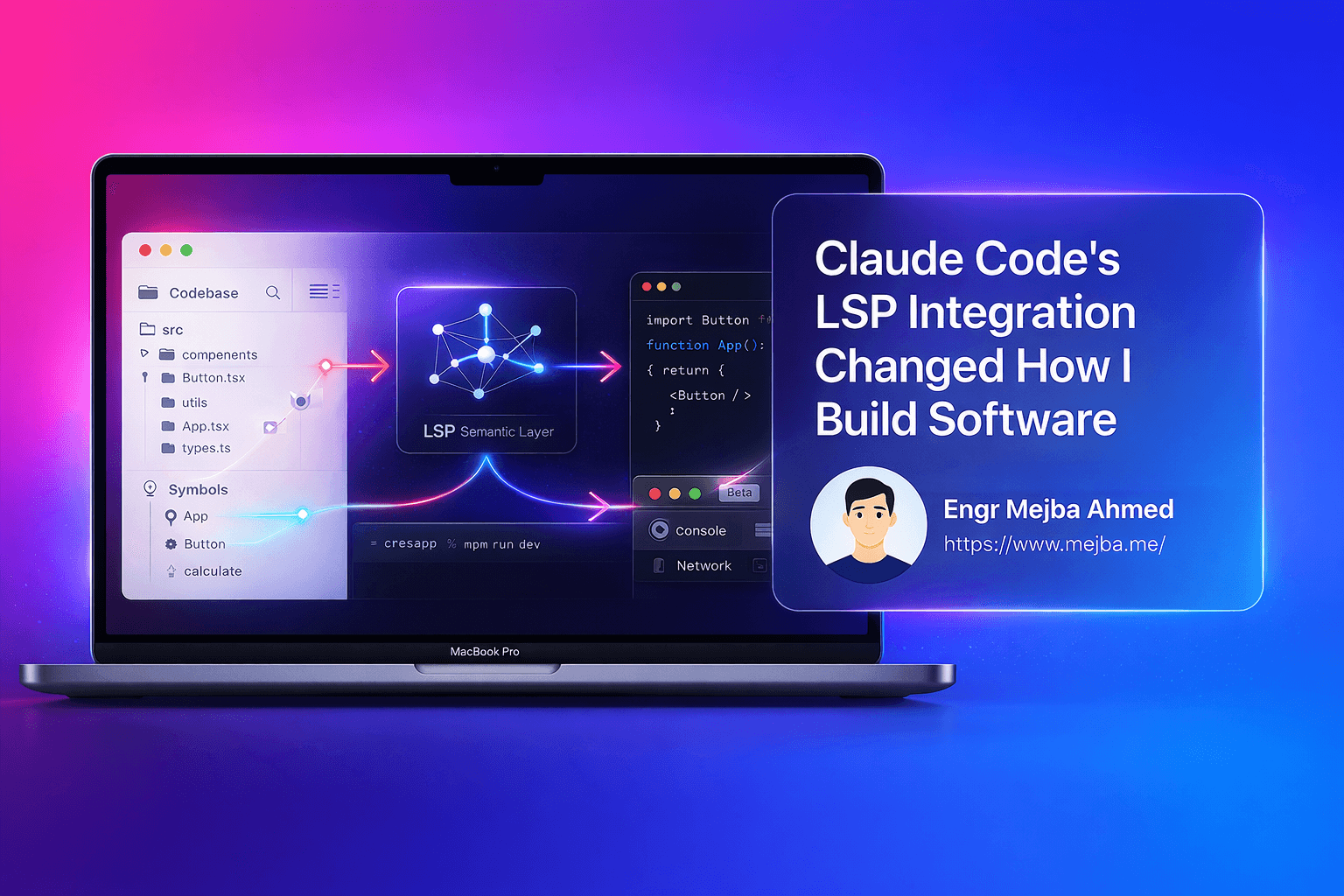
Version 2.0.74 introduces Language Server Protocol support, and this is the game-changer.
LSP is the same technology that powers VS Code's "Go to Definition," "Find All References," and hover documentation features. It's how your IDE knows that clicking on getUserData() should jump to line 47 of auth.service.ts, not just any file that happens to contain those characters.
Now Claude Code has that same structural awareness.
What This Means in Practice
I tested this immediately on a TypeScript monorepo with 200+ files. Here's what I asked:
"Find all places where the User interface is imported and show me how it's being used."
Before LSP (v2.0.69):
- Found 12 files containing "User" as a string
- Included user authentication components (not the interface)
- Missed two files that imported it with an alias:
import { User as UserModel } - Couldn't distinguish between the
Userinterface and aUsercomponent
After LSP (v2.0.74):
- Found 23 accurate references to the actual
Userinterface - Correctly identified aliased imports
- Showed me method signatures that return
Usertypes - Ignored unrelated uses of the word "user" in comments and strings
The difference is night and day. Claude now understands the semantic structure of code, not just pattern matching on text.
How LSP Reduces Hallucinations
One of my biggest frustrations with AI coding assistants has been confident wrongness. Claude would tell me, "The validateInput function is defined in utils/validation.ts at line 45," and I'd check only to find... nothing there.
With LSP, Claude can actually ask the language server: "Where is this symbol defined?" The language server responds with the exact file and line number. No guessing. No pattern matching. Just structural truth.
I tested this with a deliberate trick question:
"Where is the
processPaymentfunction defined in our codebase?"
There is no processPayment function. It doesn't exist.
v2.0.69 (pre-LSP): Confidently told me it was in services/payment.ts based on contextual reasoning. It wasn't.
v2.0.74 (with LSP): "I don't see a processPayment function defined in the codebase. There's initializePayment and handlePaymentCallback in the payment service. Did you mean one of those?"
That's the difference between guessing and knowing.
Terminal Integration: Finally Works the Way You'd Expect
The terminal experience improvements in v2.0.74 sound minor on paper, but they fix real daily friction.
Native Support for Modern Terminals
Claude Code now has a dedicated terminal setup command that integrates cleanly with:
- kitty (my personal choice)
- alacritty (for the Rust performance enthusiasts)
- warp (if you like AI-native terminals)
Before this, keyboard shortcuts were hit-or-miss. The Option key on macOS was particularly broken—I couldn't use Option+Delete to delete words or Option+Arrow to jump between words, which is muscle memory for any Mac developer.
Now it just works. I can navigate Claude's responses in the terminal exactly like I navigate code in my editor.
Syntax Highlighting Toggle
Version 2.0.74 adds a Control+T shortcut to toggle syntax highlighting on and off.
Why does this matter? Because syntax highlighting in terminals is notoriously dependent on your color scheme. If you're running a light theme or a custom palette, Claude's default syntax colors might be unreadable—bright yellow text on white backgrounds, or dark blue on black.
Now I can toggle it off when I'm screen-sharing or switch to a light theme for outdoor coding without Claude's output becoming illegible.
It's a tiny feature that shows the team is paying attention to real-world use cases.
Chrome Beta: Closing the Terminal-Browser Loop
Version 2.0.72 introduced something experimental but powerful: direct Chrome browser control from the CLI.
Here's how it works:
- Install the Claude Chrome extension
- Link it to your CLI instance
- Claude can now inspect web pages, read console logs, and examine DOM state directly
Why This Matters for Full-Stack Development
I build a lot of React apps, and debugging UI issues usually involves this painful back-and-forth:
- Run the app in the browser
- Notice a bug
- Open dev tools
- Copy the error message
- Paste it into Claude
- Claude suggests a fix
- Apply the fix
- Refresh the browser
- Repeat
With Chrome integration, Claude can see the browser state itself. I asked it:
"The login button isn't working. Can you check what's happening?"
Claude opened my staging environment, clicked the button, read the console errors, saw the failed network request, identified the CORS issue, and suggested the fix—all without me copy-pasting anything.
It's still in beta, so I wouldn't rely on it for production debugging yet. But the potential here is massive. Imagine Claude running visual regression tests, checking responsive layouts, or debugging authentication flows end-to-end.
This is the kind of integration that makes AI feel like a pair programmer who can actually see your screen.
MCP Security: Wildcard Approvals End Permission Fatigue
Version 2.0.70 introduced wildcard syntax for MCP (Model Context Protocol) server approvals.
If you've used MCP servers (like database connectors or GitHub integrations), you know the approval flow gets tedious. Every single tool requires explicit permission:
- "Allow Claude to query database?"
- "Allow Claude to list tables?"
- "Allow Claude to insert records?"
With wildcards, you can now approve an entire MCP server at once:
MCP_server_database:*
This tells Claude: "I trust this database server. Use any tool it provides."
When to Use This (and When Not To)
I use wildcard approval for:
- First-party MCP servers (built by Anthropic or trusted sources)
- Development databases (not production!)
- GitHub integrations (for repos I own)
I do NOT use it for:
- Third-party MCP servers I haven't audited
- Production database connections
- Any server that can make destructive changes
The wildcard feature is about removing friction from trusted workflows, not bypassing security entirely. Use it wisely.
Context Management: 3x Better Memory Performance
One of the sneakiest improvements in v2.0.74 is memory optimization for long conversations.
I used to hit a wall around the 50-message mark. Claude would start lagging, my terminal would stutter, and occasionally it would crash entirely. The problem was context accumulation—every message, every tool call, every file read adds to the conversation memory.
The /context Command Visualization
The updated /context command now groups context items by source and sorts them by token count. This makes it trivial to identify what's eating your context budget.
Last week, I discovered I had a 15,000-token API response buried in the conversation from a test I ran two hours earlier. It was completely irrelevant to my current task but still consuming context.
Now I can spot these bloated items instantly and clean them up.
Garbage Collection Improvements
Version 2.0.74 optimizes how Claude handles conversation history. The team reports 3x memory efficiency improvements, and I can confirm long sessions are noticeably more stable.
I recently worked on a feature that took 120 messages back-and-forth over 6 hours. On v2.0.69, that would have been impossible—the terminal would have crashed by message 80. On v2.0.74, it ran smoothly the entire time.
UI Polish: Clickable Image Links and Prompt Control
Clickable Images (v2.0.73)
When Claude generates or references an image, it's now a clickable link in the terminal. Previously, I'd have to copy the path and open it manually. Small quality-of-life win, but it adds up when you're iterating on design mockups or AI-generated assets.
Prompt Suggestion Toggle (v2.0.71)
This one's subjective, but some developers love AI autocomplete, and others find it distracting. Version 2.0.71 adds a /config toggle to enable or disable Claude's prompt suggestions.
I keep it on when I'm exploring unfamiliar codebases (Claude's suggestions help me discover patterns). I turn it off when I'm deep in flow state and don't want interruptions.
Having the choice is what matters.
What These Updates Mean for Professional Workflows
Let's be real: AI coding tools are still maturing. Claude Code isn't going to replace a senior engineer. But these updates move it from "interesting experiment" to "genuinely productive tool."
Where I Use Claude Code Now
Before v2.0.74: Boilerplate generation, explaining unfamiliar code, writing documentation.
After v2.0.74: Refactoring multi-file features, debugging production issues (with Chrome integration), navigating large codebases I didn't write.
The LSP integration specifically is a turning point. I trust Claude's code navigation now. I don't second-guess when it tells me where something is defined or how many files import a module.
What's Still Missing
- Multi-language LSP support: Right now, LSP works best with TypeScript/JavaScript. Python and Go support exist but are less mature.
- Refactoring automation: I'd love to say "rename this function everywhere" and have Claude handle imports, tests, and documentation automatically.
- Visual diff previews: When Claude suggests changes across 10 files, I want a unified diff view before applying.
These aren't criticisms—they're the next frontier. The fact that Claude Code has matured enough that I'm thinking about advanced workflows (not basic functionality) is a good sign.
How to Upgrade and What to Expect
If you're already using Claude Code:
npm update -g @anthropic-ai/claude-code
Or with Homebrew:
brew upgrade claude-code
First Things to Try
- Test LSP navigation: Ask Claude to find all references to a function in your codebase. Compare the results to your IDE's "Find References" feature.
- Set up terminal shortcuts: Run the new terminal setup command if you use kitty, alacritty, or warp.
- Try Chrome integration: If you do web development, install the Chrome extension and link it. Ask Claude to inspect a page you're working on.
- Review context usage: Run
/contextin an active conversation and see what's consuming tokens. Clean up anything unnecessary.
Breaking Changes
None that I've hit. The upgrade has been seamless. Your existing workflows should continue working exactly as before—just better.
My Honest Take: Is This Worth Switching For?
If you're not using Claude Code yet, the LSP integration alone makes it worth trying. It's the feature that moves AI code assistance from "fancy autocomplete" to "structural understanding."
If you're already using an older version, upgrade immediately. The performance improvements, LSP navigation, and terminal polish eliminate enough friction that I'm measurably faster now.
If you're comparing Claude Code to GitHub Copilot or Cursor: Claude Code's conversational approach and LSP awareness feel more suited to architecture-level work and refactoring. Copilot is still faster for inline autocomplete. Cursor sits somewhere in between. Use the tool that fits your workflow.
For me, Claude Code has become my default for:
- Understanding inherited codebases
- Planning multi-file refactors
- Debugging integration issues across services
- Exploring new frameworks (I used it to learn Svelte last month)
The updates from v2.0.70 to v2.0.74 aren't just incremental improvements. They're the maturation of AI-assisted development into something I trust for real work.
🤝 Let's Work Together
Looking to build AI systems, automate workflows, or scale your tech infrastructure? I'd love to help.
- 🔗 Fiverr (custom builds & integrations): fiverr.com/s/EgxYmWD
- 🌐 Portfolio: mejba.me
- 🏢 Ramlit Limited (enterprise solutions): ramlit.com
- 🎨 ColorPark (design & branding): colorpark.io
- 🛡 xCyberSecurity (security services): xcybersecurity.io