"Just make it look good."
Four words that have haunted developers since the dawn of the web. You've spent hours perfecting your logic, your API calls return exactly what they should, your state management is clean. Then someone looks at your screen and asks why everything is gray boxes with blue text.
I've been there. More times than I'd like to admit.
Here's the uncomfortable truth most AI coding tutorials skip over: Claude Code, Cursor, and every other AI coding assistant can build you functional software. They can wire up authentication, handle database queries, and scaffold entire applications. But ask them to make something beautiful in a single prompt?
You'll get generic. You'll get Bootstrap vibes from 2015. You'll get something that technically works but looks like it was designed by someone who thinks "padding: 10px" is a personality.
The problem isn't the AI. The problem is we're using these tools wrong.
After months of experimenting with different workflows, I've found something that actually works. Not a single magic prompt—that doesn't exist. But a combination of tools that lets developers without design degrees build websites that look like a real designer touched them.
Let me show you the five tools that changed everything.
Why Single-Prompt Design Fails (And What Actually Works)
Before we dive into the tools, let's talk about why "make me a beautiful landing page" as a prompt produces mediocre results.
AI models like Opus 4.5 and Gemini 3 Pro have gotten remarkably good at understanding design intent. They know what a hero section is. They understand whitespace. But they're making thousands of micro-decisions—color relationships, font pairings, spacing ratios, visual hierarchy—all at once, with no real reference point beyond their training data.
The result is average. Statistically average. Which is exactly what you don't want when trying to stand out.
The workflow that actually produces stunning results looks different. It's about giving AI the constraints and inspiration it needs before asking it to generate anything. Think of it like cooking—you wouldn't ask someone to make a great meal without telling them what ingredients they have or what cuisine they're going for.
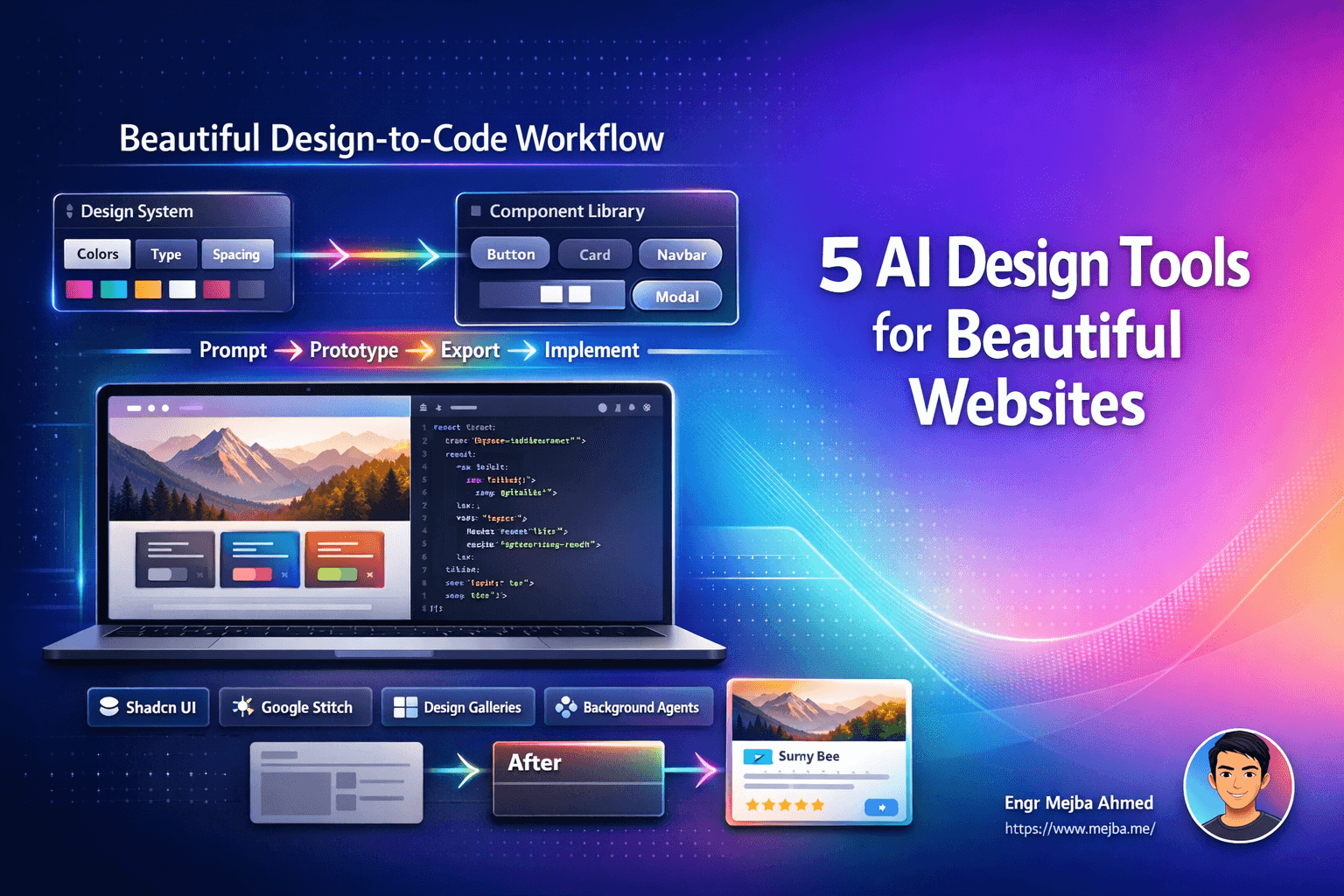
Here's how the pieces fit together.
1. Shadcn UI: The Foundation That Doesn't Look Like a Foundation
Let's start with Shadcn UI. If you haven't used it yet, prepare to have your mind changed about component libraries.
Shadcn isn't like other UI libraries. You're not installing a package that dumps pre-styled components into your project. Instead, you're copying actual component code into your codebase that you own and can modify however you want. It's built on Radix UI primitives, which means accessibility is handled, but the styling is entirely yours.
Here's why this matters for AI-assisted development:
When you tell Claude Code to build something with Shadcn components, it's working with components that are designed to be customized. No fighting against library defaults. No "!important" hacks. Just clean, modifiable code.
The new preset system makes this even better. Here's the workflow:
- Visit the Shadcn create page
- You'll see sample components on one side and presets on the other
- Experiment with different styles—click through them, see how they change the components
- Found something you like? Select your framework (React, Next.js, whatever you're using)
- Copy the install command
- Run it in your terminal
That's it. Your project now has beautiful, accessible, customizable components with the exact style preset you chose. When Claude Code generates UI, it's building with these components, and they already look good.
The key insight here: prepare your design system before you start coding. This eliminates the back-and-forth of "make the button more rounded" and "can you change that blue to something warmer." The decisions are already made.
2. Google Stitch: Where AI Design Actually Shines
Now let's talk about the design phase itself. Google Stitch has quietly become one of the most powerful AI design tools available, and most developers don't even know it exists.
Stitch now integrates Gemini 3 Pro Thinking and something called Nano Banana (yes, really), which generates images on-the-fly to enhance your designs. This isn't Figma with AI sprinkled on top. This is AI-first design that understands what you're trying to build.
But here's the thing—Stitch works best when you don't start from scratch.
The Color-First Workflow
Before opening Stitch, head to Coolors. This color palette generator is essential for one simple reason: it forces you to make a decision that affects everything else.
Spend four minutes—seriously, set a timer—experimenting with palettes. Use the spacebar to generate new combinations. Lock colors you like. Adjust the saturation and brightness. When you find something that feels right, export it.
Now when you open Stitch and start designing, you're not asking AI to also figure out your color story. You're giving it a constraint: "use these colors." The result is cohesive, intentional design instead of AI guessing what palette might work.
The New Prototype Feature That Changes Everything
Here's where Stitch gets genuinely impressive. After you've designed multiple screens—landing page, pricing page, about page, whatever—you can select all of them and Stitch will generate a fully functional prototype.
Not just linked artboards. An actual working prototype that:
- Automatically detects clickable areas
- Adjusts navigation flows
- Provides a working demo directly from your design file
For client presentations, user testing, or just validating your own ideas before writing code, this is massive. You're testing user flows before a single line of code exists.
Exporting to AI Coding Agents
Stitch now exports directly to:
- AI Studio
- Jules (Google's AI coding agent)
- Or just copy code to clipboard
Alternatively, you can export as a zip file and import into Claude. This is my preferred workflow—export from Stitch, drag the zip into Claude Code, and let it implement what you've already designed.
The AI isn't making design decisions anymore. It's translating decisions you've already made into code. That's a fundamentally different task, and AI is much better at it.
3. The Design Resource Stack That Professionals Actually Use
Here's something I learned the hard way: professional designers don't create everything from scratch. They pull inspiration, reference existing patterns, and adapt proven solutions.
You should too. Here's the stack of resources I keep open while designing:
For Color
Coolors - Already mentioned, but worth repeating. Generate palettes, analyze color relationships, export in any format you need. The "explore" section also shows trending palettes if you need a starting point.
For Typography
FontBolt - A fonts library that makes pairing decisions easier. Bad font choices can make an otherwise beautiful design look amateur. This helps you avoid that.
For Hero Sections
Supahero - A gallery of hero section designs. When you're stuck staring at a blank canvas wondering how to make your above-the-fold content compelling, this is where you go. Screenshot something you like, drop it into Stitch, and let AI adapt it to your brand.
For Background Patterns
Hero Patterns - Subtle background patterns that add visual interest without overwhelming your content. Sometimes a solid color background feels too flat. These SVG patterns give you options.
For Navigation
Navbar Gallery - Navigation is deceptively hard to get right. This gallery shows you patterns that work—dropdowns, mega menus, mobile-responsive approaches. Study what others do before reinventing the wheel.
For Calls-to-Action
CTA Gallery - Your CTA is arguably the most important element on any page. This gallery shows effective approaches across different industries and goals.
For Error States
404s.design - 404 pages seem trivial until you realize they're an opportunity. A good error page keeps users engaged instead of bouncing. This site shows creative approaches.
For Footers
Footer.design - Footers are often afterthoughts, but they handle critical functions: navigation, legal links, contact info, social proof. This gallery shows how good footers balance utility and aesthetics.
For Icons
IconShelf - Consistent iconography matters more than you'd think. IconShelf helps you manage and find icons that work together.
The Workflow
Here's how I use these resources:
- Start a design project
- Open three or four of these galleries in tabs
- Find examples that match what I'm trying to achieve
- Screenshot the relevant sections
- Drop them into Stitch as references
- Let AI adapt the inspiration to my specific brand and content
This isn't copying. It's working the way professional designers have always worked—studying what's effective and adapting it. The AI just makes the adaptation faster.
4. Claude AI Background Agents: The Game-Changer Nobody Talks About
Alright, let's get into Claude Code itself. There's a relatively new feature that fundamentally changes how I work: background agents.
Previously, when you asked Claude to use sub-agents—say, one agent to research something while another writes code—everything ran sequentially. You'd wait. And wait. The workflow felt sluggish despite the parallel potential.
Claude has fixed this. Sub-agents now run in the background, which means:
- Multiple agents work simultaneously on different tasks
- You can continue working while background tasks complete
- Complex workflows that used to take forever now parallelize naturally
A Practical Example
Let's say you're building a landing page. You might:
- Have one agent generating the component code
- Have another agent writing unit tests
- Have a third agent running Puppeteer MCP to test the UI in a real browser
All three run concurrently. Each returns results when done.
This is especially valuable for browser testing. Puppeteer MCP lets Claude actually load your UI in a browser and verify it looks right. Previously, this blocking operation killed your momentum. Now it runs in the background while you work on other things.
The Cost Reality
Fair warning: running multiple agents simultaneously burns through tokens faster. Keep an eye on your usage. The efficiency gain is often worth it, but don't be surprised when your bill reflects the parallel work.
For complex builds, I'll spin up background agents for:
- Linting and code quality checks
- Screenshot comparisons
- Automated accessibility testing
- Performance benchmarking
Each one returns independently, letting me address issues as they surface rather than waiting for a single serial queue to complete.
5. Drawbridge: Solving the UI Fix Frustration
Here's a problem you've definitely encountered: you've built something with Claude Code, it's 90% there, but there's this one small UI issue. A button that's positioned slightly wrong. A margin that's off. A color that doesn't quite match.
You describe it. Claude makes a change. It's wrong. You describe it differently. Another change. Still wrong. Repeat until frustrated.
Drawbridge solves this.
Drawbridge is a tool that lets you visually select exactly what you're talking about. Click on the element that's wrong. Draw a box around the problem area. The tool captures this visual context and sends it to Claude Code so the AI actually understands what you're pointing at.
Recent Updates That Matter
I've talked about Drawbridge before, but recent updates have made it significantly better:
- Direct Claude Code integration - Setup is now automatic
- Improved selection accuracy - Selecting the exact element you mean is easier
- Screenshot reliability fixes - Previous versions had capture issues, now resolved
- Automatic slash commands - Claude Code setup used to be manual, now it's handled for you
Why This Matters
The bottleneck in AI-assisted development isn't generating code. It's communication. Telling an AI exactly what you want changed requires either perfect verbal descriptions or some way to point.
Drawbridge gives you pointing. For UI work, this alone saves hours of frustration.
Non-technical users especially benefit here. A product manager can select exactly what they want changed without knowing anything about CSS selectors or component structure. They point. Claude fixes. Everyone's happy.
The Complete Workflow: Putting It All Together
Let me walk through how these tools combine in practice.
Step 1: Define Your Design System
- Choose a Shadcn preset that matches your aesthetic
- Generate a color palette with Coolors
- Pick your typography from FontBolt
- Install Shadcn in your project
Step 2: Design Before You Code
- Open Google Stitch
- Pull inspiration from the design galleries for hero, nav, footer, CTAs
- Screenshot references and drop them into Stitch
- Design your screens with your color palette constraint
- Generate a prototype to test user flows
Step 3: Export and Implement
- Export from Stitch as a zip or code
- Import into Claude Code
- Let AI implement the design using your Shadcn components
- Use background agents to run tests concurrently
Step 4: Refine with Precision
- Install Drawbridge
- Visually select any elements that need adjustment
- Let Claude fix exactly what you're pointing at
- Iterate quickly without verbal description frustration
Step 5: Verify and Ship
- Use Puppeteer MCP for automated visual testing
- Run background agents for accessibility and performance checks
- Make final adjustments
- Deploy
This workflow sounds like more steps than "prompt and pray," but it's actually faster. Each step eliminates ambiguity. Each tool solves a specific problem. The AI isn't guessing—it's executing clear instructions with proper context.
The Bigger Picture: AI as a Force Multiplier
Here's what I keep coming back to: AI isn't replacing the need for design thinking. It's removing the execution barrier.
Previously, having a great design idea and lacking the skills to implement it meant hiring someone or learning years of craft. Now, the gap between "I can imagine this" and "I can build this" has shrunk dramatically.
But the imagining still matters. The taste still matters. Knowing what good looks like—and having the tools to find references, define constraints, and communicate precisely—that's the skill that AI coding actually requires.
The developers who thrive with these tools won't be the ones who write the cleverest prompts. They'll be the ones who understand design enough to guide AI toward good outcomes.
These five tools aren't magic. They're leverage. They're the difference between AI that produces generic output and AI that produces something you'd actually be proud to ship.
The best part? This is just the beginning. Stitch is getting better. Claude's background agents are getting smarter. Drawbridge is getting more precise. The workflow I've described today will be even more powerful in six months.
So stop trying to get beautiful results from single prompts. Build the workflow. Use the tools. Give AI the constraints and references it needs.
The websites you build will actually look like you meant for them to look that way.
And when someone inevitably asks "who designed this?"—you can honestly say you did. With a little help from your AI pair programmer.
🤝 Hire / Work with me:
- 🔗 Fiverr (custom builds, integrations, performance): fiverr.com/s/EgxYmWD
- 🌐 Mejba Personal Portfolio: mejba.me
- 🏢 Ramlit Limited: ramlit.com
- 🎨 ColorPark Creative Agency: colorpark.io
- 🛡 xCyberSecurity Global Services: xcybersecurity.io