AutoClaw Turns AI Coding Into a Visual Kanban Workflow
I've been using Claude Code in my terminal for months now. It's powerful—arguably the best AI coding assistant available—but there's one friction point I kept running into: visibility. When I'm running an AI agent on a complex refactoring task, I can see text scrolling past, but tracking actual progress across multiple parallel tasks? That's where terminal-based workflows start to feel limiting.
Then I discovered AutoClaw, and suddenly that friction disappeared. It's a desktop application that wraps AI coding agents in a visual Kanban interface, letting you manage multiple development tasks the way you'd manage any project—with boards, cards, and clear status indicators. After spending a week putting it through real projects, I'm convinced this is how AI-assisted development should feel.
Here's what I found, how it changes the workflow, and whether it's worth adding to your stack.
The Problem With Terminal-Based AI Coding
Let me be clear: I love working in the terminal. My daily setup involves tmux, neovim keybindings, and more CLI tools than I can count. But AI coding agents introduced a new challenge that terminal workflows weren't designed to solve.
When Claude Code tackles a feature request, it goes through multiple phases: understanding the codebase, planning the approach, writing code, running tests, fixing errors, and iterating. In a terminal, all of this appears as a continuous text stream. If I'm running one task, that's manageable. If I'm running three tasks simultaneously—say, a bug fix, a new feature, and a documentation update—keeping track becomes genuinely difficult.
I'd find myself switching between tmux panes, scrolling through logs, trying to remember which task was in which state. Did the authentication refactor finish? Is the API endpoint task waiting for my review? The cognitive overhead of tracking parallel AI work in text-only interfaces ate into the productivity gains the AI was supposed to provide.
Project managers solved this exact problem decades ago with visual boards. You look at a Kanban board and immediately understand what's in progress, what's blocked, and what's done. AutoClaw applies that same principle to AI development workflows, and the clarity it provides feels obvious in retrospect.
What AutoClaw Actually Does
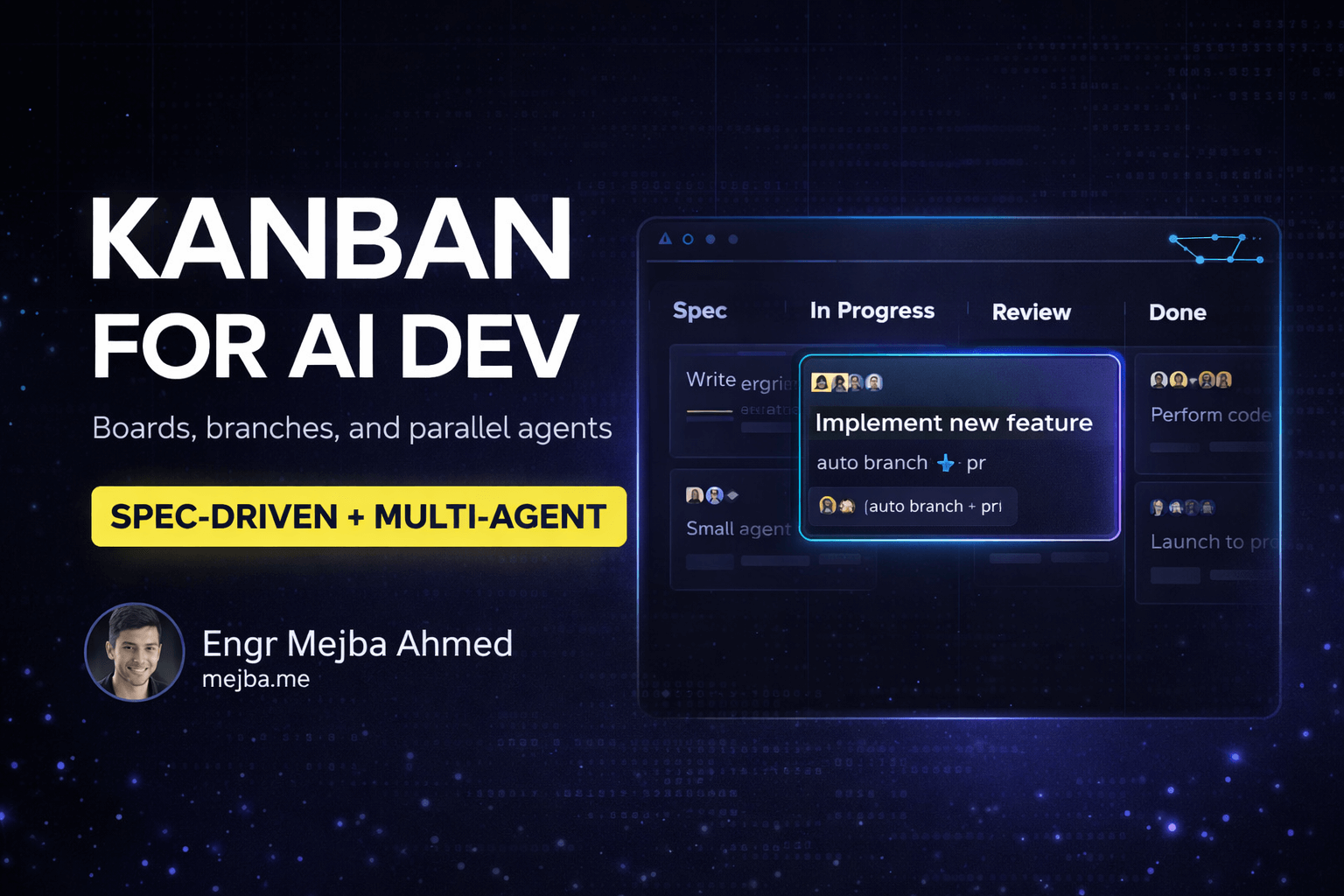
AutoClaw is a desktop application that provides a graphical interface for managing AI coding sessions. Instead of typing commands into a terminal and watching text scroll, you create task cards on a Kanban board, and AI agents work through them visually.
The core concept is simple: each task becomes a card. You describe what needs to happen—fix a bug, add a feature, refactor a component—and optionally attach screenshots or reference files. The card moves through columns representing different development stages: planning, in progress, AI review, human review, done.
Behind the scenes, AutoClaw spawns Claude sessions (or other compatible agents) to work on each task. But instead of those sessions being invisible terminal processes, they're connected to visual cards that show real-time progress, logs, subtasks, and generated code.
What makes this genuinely useful rather than just a wrapper is the automation around the development lifecycle. When you start a task, AutoClaw automatically creates a feature branch in Git. As the agent works, it tracks changes, manages commits, and when the task completes, it can generate pull requests—all visible in the interface.
Spec-Driven Development That Actually Works
The feature that changed my workflow most wasn't the visual board—it was the spec-driven development approach AutoClaw enforces.
Here's the traditional AI coding flow: you describe a task, the AI starts writing code immediately, you review the output, you ask for changes, repeat. This works for simple tasks, but for anything complex, you end up in revision cycles that could have been avoided with better upfront planning.
AutoClaw separates planning from implementation. When you create a task, you can configure it to require a specification phase before any code gets written. The AI agent analyzes your request, examines the relevant codebase, and generates a detailed implementation plan. That plan goes to you for review before a single line of code gets generated.
I tested this on a UI improvement task similar to one I'd done manually the week before. The task: redesign a transaction matching page in a bookkeeping app. The original interface required excessive scrolling because multiple filter cards took up too much vertical space.
In my manual approach, I'd described the problem to Claude Code and started iterating immediately. We went through four revision cycles before landing on a design I liked—switching from vertical filter cards to a compact horizontal layout, adding better pagination, improving the data table visibility.
With AutoClaw's spec-driven approach, I created the task, attached a screenshot of the problematic page, and let the agent generate a specification first. The spec it produced outlined the exact changes: consolidate filters into a collapsible horizontal bar, move transaction tables above the fold, add sticky headers, implement virtual scrolling for large datasets. I reviewed it, approved it, and the implementation phase produced code that matched the spec on the first pass.
The difference? One approach generated throwaway code during the figuring-out phase. The other separated thinking from doing, which is how experienced developers actually work on complex problems.
Running Multiple Agents Without Losing Track
The multi-agent capability is where AutoClaw's visual approach really shines. You can run up to twelve terminal sessions simultaneously within the app, each potentially working on different tasks.
In practice, I rarely run twelve agents at once. But running three to four parallel tasks is common in my workflow: one agent handling a feature, another fixing a bug in a different part of the codebase, a third generating documentation for a recently shipped feature. In a terminal setup, this would mean managing multiple tmux sessions or terminal tabs, constantly context-switching to check status.
With AutoClaw, I glance at the board. Three cards in the "in progress" column, each showing live output, current subtask, and percentage completion. One card moves to "AI review"—the agent finished and is running automated checks. I can see exactly where everything stands without reading through logs.
The visual representation also helps with resource management. When I see four agents running simultaneously and my machine slowing down, I can pause lower-priority tasks with a click rather than hunting for process IDs.
The Insights Feature I Didn't Know I Needed
AutoClaw includes an "Insights" panel that functions like a conversational interface for your codebase. You can ask questions about architecture, get suggestions for improvements, or explore how different parts of the system connect—all without creating formal tasks.
I initially dismissed this as a gimmick. I already have Claude Code for codebase questions. But the integration with the visual workflow changed how I use it.
When planning a new feature, I'll open Insights and ask questions like "What's the current approach for handling authentication errors in the API layer?" or "Show me the data flow from the transaction import form to the database." The responses appear alongside my task board, and if the answer reveals work that needs doing, I can create a task card directly from the insight.
This tight loop between exploration and task creation eliminated a friction point I hadn't consciously noticed: the mental overhead of switching between "understanding mode" and "doing mode." Now they flow together in the same interface.
Roadmap Analysis: AI-Driven Product Strategy
One feature that surprised me was the Roadmap tool. AutoClaw can scan app stores, forums, competitor websites, and review platforms to identify feature gaps and market opportunities. It categorizes findings into "must-have" features (things competitors all have that you're missing) and "nice-to-have" features (differentiators that could provide competitive advantage).
I tested this on a side project—a developer tool I've been building sporadically. The analysis pulled competitor features from similar tools, user complaints from relevant Reddit threads, and feature requests from GitHub issues on open-source alternatives. The output categorized about forty features, ranked by how often they appeared in user discussions.
Is this replacing proper market research? No. But as a starting point for product planning, it's remarkably useful. Features I'd been considering got validated by user demand data. Features I'd never considered showed up repeatedly in competitor analysis. The whole exercise took twenty minutes and would have taken days to replicate manually.
The Ideation Engine for When You're Stuck
Related to the roadmap feature is an ideation tool that generates feature suggestions across categories: UI/UX improvements, security enhancements, performance optimizations, documentation gaps, and more.
When I'm deep in implementation work, I lose sight of higher-level product improvements. The ideation feature serves as a periodic reset—a way to step back and consider what else the product could do.
The suggestions range from obvious to creative. In one session, it proposed adding undo functionality for destructive actions (obvious in retrospect, missing from my app), implementing keyboard shortcuts for power users, and creating a public API for integrations. Some suggestions I dismissed immediately. Others went straight onto my backlog.
The value isn't that AI knows my product better than I do. It's that AI can systematically consider improvement categories that I forget to think about when I'm heads-down on specific features.
Work Trees: Git Visualization That Makes Sense
Managing Git branches during active development is another area where terminal workflows create friction. Which branches have uncommitted changes? Which have been merged? Which have pending pull requests?
AutoClaw's Work Trees feature provides a visual representation of your Git branches alongside the task cards that created them. When AutoClaw creates a feature branch for a task, that branch appears in the tree. You can see merge status, create pull requests, delete stale branches—all from the visual interface.
For solo developers, this is convenient. For teams, it's potentially transformative. Seeing the relationship between tasks and branches at a glance eliminates the confusion that happens when multiple people are working on parallel features.
Custom MCP Server Integration
AutoClaw comes with default MCP (Model Context Protocol) servers like Context7 for documentation lookup and Gravity Memory for persistent context. But it also supports adding custom servers, which extends the capabilities of your AI agents.
I added an MCP server connected to our internal documentation system. Now when agents work on tasks, they can query our architecture decisions, API specifications, and coding standards—information that wasn't available when using standalone Claude Code.
The flexibility here matters. Every team has context that lives outside the codebase: design documents, Slack discussions, wiki pages, internal tools. MCP servers let you pipe that context into AI agents, which dramatically improves the relevance of their output.
Practical Setup and First Steps
Getting started with AutoClaw involves downloading the desktop app and connecting it to your AI provider (Claude, in my case). The initial setup takes about ten minutes—you'll configure API keys, set default agent profiles, and connect your Git repositoriesGitHub repository.
My recommended first project: take a pending task from your backlog that you've been avoiding. Not something critical, but something substantive enough to test the workflow. Create a task card, describe the problem clearly, attach any relevant screenshots or files, and let the agent generate a specification first.
Review the spec carefully. This is where you'll catch misunderstandings before they become wasted code. Once the spec looks right, approve it and watch the implementation phase. The visual progress indicators make it easy to see what's happening without reading every log line.
Your first task will probably take longer than doing it manually would have. You're learning the interface, developing intuition for how to describe tasks effectively, and adjusting the agent's behavior. By the third or fourth task, you'll be faster than your terminal-based workflow.
Where AutoClaw Fits and Where It Doesn't
AutoClaw shines for:
Feature development with clear requirements. When you know what needs to be built and can describe it clearly, the spec-driven approach and visual tracking genuinely improve workflow.
Managing multiple parallel tasks. If you're regularly running several AI agents simultaneously, the visual board provides clarity that terminal workflows can't match.
Projects with significant Git complexity. The work trees feature and automated branch management reduce the cognitive load of tracking branches across features.
Teams with shared development context. The visual nature of tasks and progress makes it easier for team members to understand what's happening without reading through Slack threads.
AutoClaw is less useful for:
Quick one-off questions. If you just need to ask Claude a quick question about code, the overhead of creating a task card isn't worth it. Keep your terminal Claude Code setup for these.
Highly exploratory work. When you don't know what you're building yet—when the work is more exploration than implementation—the structured task approach can feel constraining.
Simple scripts and utilities. For small automation tasks or quick scripts, the visual workflow adds unnecessary ceremony.
The Bigger Picture: AI Development Is Getting Visual
AutoClaw represents a broader trend I've been watching: AI development tools moving from text-only interfaces to visual workflows. The terminal will always have a place—it's fast, flexible, and familiar. But as AI agents take on larger, more complex tasks, visual management becomes necessary.
Watching an agent work through a Kanban board feels different from watching text scroll in a terminal. You see progress, not just activity. You see relationships between tasks, not just individual outputs. You see where you need to intervene, not just where things failed.
For developers comfortable with terminal workflows, AutoClaw doesn't replace what you have—it adds a layer of visual management on top. For developers who find terminal-based AI coding opaque and hard to track, it provides an interface that matches how you already think about project management.
Either way, if you're doing serious AI-assisted development with multiple parallel tasks, the visual approach is worth trying. The productivity gains from better task visibility compound over time, especially as AI agents become capable of handling larger units of work independently.
I'm keeping my terminal setup for quick interactions. For anything involving multiple tasks, branch management, or team coordination, AutoClaw is now my default.
Let's Work Together
Looking to build AI systems, automate workflows, or scale your tech infrastructure? I'd love to help.
- Fiverr (custom builds & integrations): fiverr.com/s/EgxYmWD
- Portfolio: mejba.me
- Ramlit Limited (enterprise solutions): ramlit.com
- ColorPark (design & branding): colorpark.io
- xCyberSecurity (security services): xcybersecurity.io